Zapier Integration
Zapier connects apps in automated workflows called Zaps. Although LLM API does not require a native Zapier app, you can call any supported AI model from a Zap with Webhooks by Zapier.
This guide sends a custom POST request to LLM API's OpenAI-compatible Chat Completions endpoint. You can insert data from earlier Zap steps into the prompt, then pass the model's response to later steps.
Prerequisites
- An LLM API account with an API key
- A Zapier account with access to Webhooks by Zapier, which is a Premium app
- A Zap with a tested trigger whose data you can use in the prompt
Connect LLM API with Webhooks by Zapier
Get Your LLM API Key
- Open the LLM API dashboard.
- Click Create Key to Start.
- Copy the new API key. It is shown only once.
- Store the key securely, such as in a password manager.
WARNING
Treat your API key like a password. Do not include it in screenshots, exported Zaps, or fields
that other users can view.
Add a Webhook Action
- Open an existing Zap or create a new one.
- Configure and test the trigger before adding the AI request.
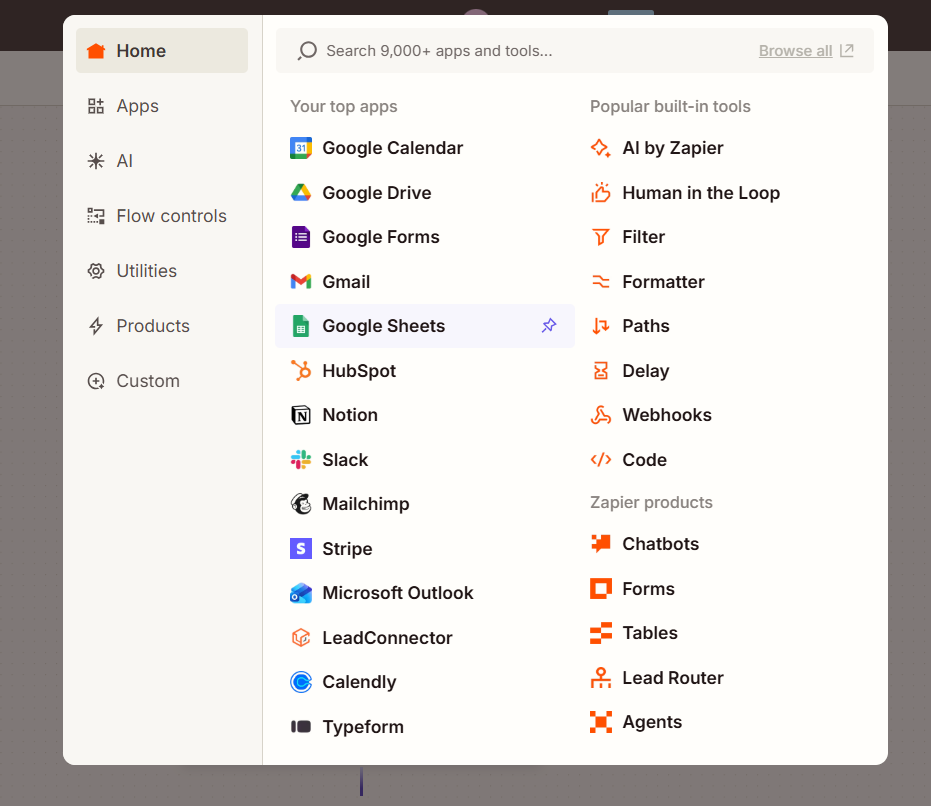
- Click + to add an action step.
- Search for and select Webhooks by Zapier. You may also find it under Popular built-in tools.
Select Custom Request
- Set Action event to Custom Request.
- Click Continue.
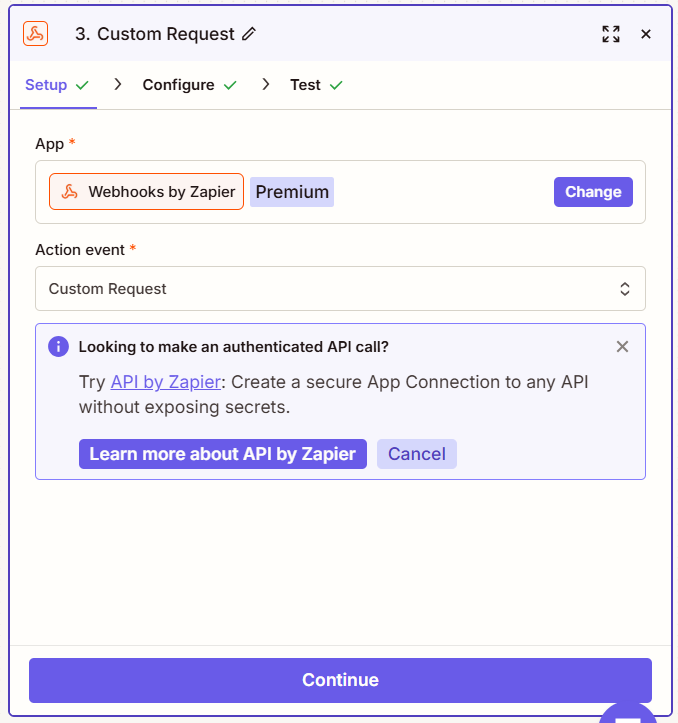
Use Custom Request because a chat completion contains a nested messages array. This event lets you enter the JSON body exactly as LLM API expects it.
Configure the Request
Enter these values in the Configure tab:
- Method:
POST
- URL:
https://api.llmapi.ai/v1/chat/completions
- Data Pass-Through:
False
- Basic Auth: leave blank
- Unflatten:
No
- Return Raw Response:
No
In Data, enter a valid JSON request body:
{
  "model": "gpt-5.4-mini",
  "messages": [
    {
      "role": "user",
      "content": "Summarize this text: Replace this text with data from the trigger"
    }
  ]
}
Replace the example text in content with a field from the trigger or another earlier step. In Zapier, click the + button in the Data field and select the value you want to insert. Keep the inserted value inside the JSON string's quotation marks.
You can use any available model. Copy its exact ID from the models page and replace gpt-5.4-mini if needed.
INFO
Use the public endpoint exactly as shown: https://api.llmapi.ai/v1/chat/completions.
Add the Headers
In Headers, add both rows:
| Key |
Value |
Authorization |
Bearer YOUR_LLM_API_KEY |
Content-Type |
application/json |
Replace YOUR_LLM_API_KEY with the key copied from the LLM API dashboard. Keep Bearer followed by one space before the key.
WARNING
Do not put the LLM API key in Basic Auth. LLM API expects it in the Authorization header.
Click Continue when the request is configured.
Test the Request
- Open the Test tab.
- Click Test step.
- Confirm that the result has a
200 status and contains an assistant response.
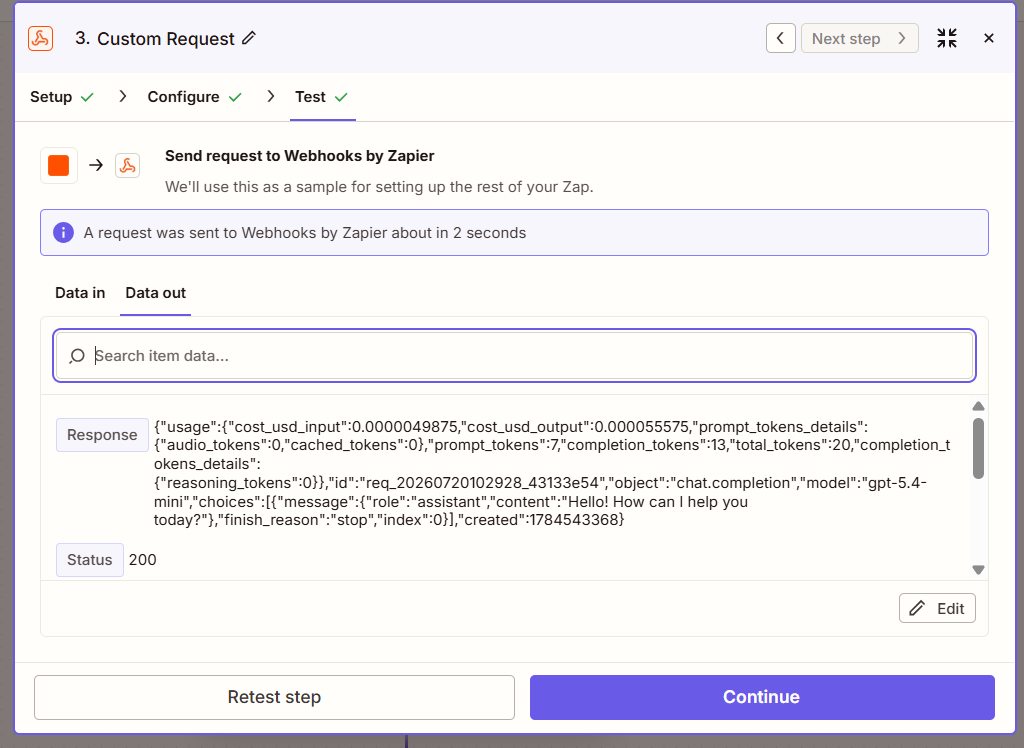
The example above has Return Raw Response enabled to display the complete response while debugging. With the recommended No setting, Zapier instead exposes the parsed response fields.
The generated text is returned in choices[0].message.content. With Return Raw Response set to No, Zapier parses the JSON so you can select that content in later actions.
Use the AI Response
- Add the next action, such as Gmail, Slack, Google Docs, or Google Sheets.
- Click the destination field that should receive the generated text.
- Select the Webhooks step, then choose the assistant message's Content value.
- Test the next action and publish the Zap.
Each time the trigger runs, Zapier sends the mapped input to LLM API and passes the generated response to the remaining steps.
Troubleshooting
401 Unauthorized
- Confirm the
Authorization value starts with Bearer , including the space.
- Paste the API key again without quotation marks or extra spaces.
- Confirm that the key is active in the LLM API dashboard.
400 Bad Request or Invalid JSON
- Check that every JSON key and string uses double quotes.
- Remove trailing commas after the last item in an object or array.
- Make sure dynamic Zapier values remain inside the quotes for
content.
- Keep Data Pass-Through set to False so Zapier sends the JSON from the Data field.
Model Not Found
- Copy the exact model ID from the models page.
- Confirm that the API key's IAM rules allow the selected model and provider.
The Response Cannot Be Selected in a Later Step
- Set Return Raw Response to No and test the Webhooks step again.
- Reopen or refresh the later action so Zapier loads the new parsed response fields.
- Select the content under the first item in
choices, then message.
Next Steps
- Add a system message to the
messages array to control the model's behavior.
- Map fields from multiple earlier steps into the prompt.
- Review request cost, latency, and provider details in the LLM API dashboard.