TypingMind Integration
TypingMind is a browser-based chat interface for working with models from multiple AI providers. Its custom model support lets you connect an OpenAI-compatible endpoint, including LLM API.
This guide adds one LLM API model to TypingMind. Repeat the custom model steps for each additional model you want to use.
Prerequisites
- An LLM API account with an API key
- Access to TypingMind with permission to add custom models
- The exact ID and context length of the model you want to add
Use the LLM API models page to choose a model and copy its details.
Add an LLM API Model
Get Your LLM API Key
- Open the LLM API dashboard.
- Click Create Key to Start.
- Copy the new API key. It is shown only once.
- Store the key securely, such as in a password manager.
WARNING
Treat your API key like a password. Do not include the real key in screenshots or share an
exported configuration that contains it.
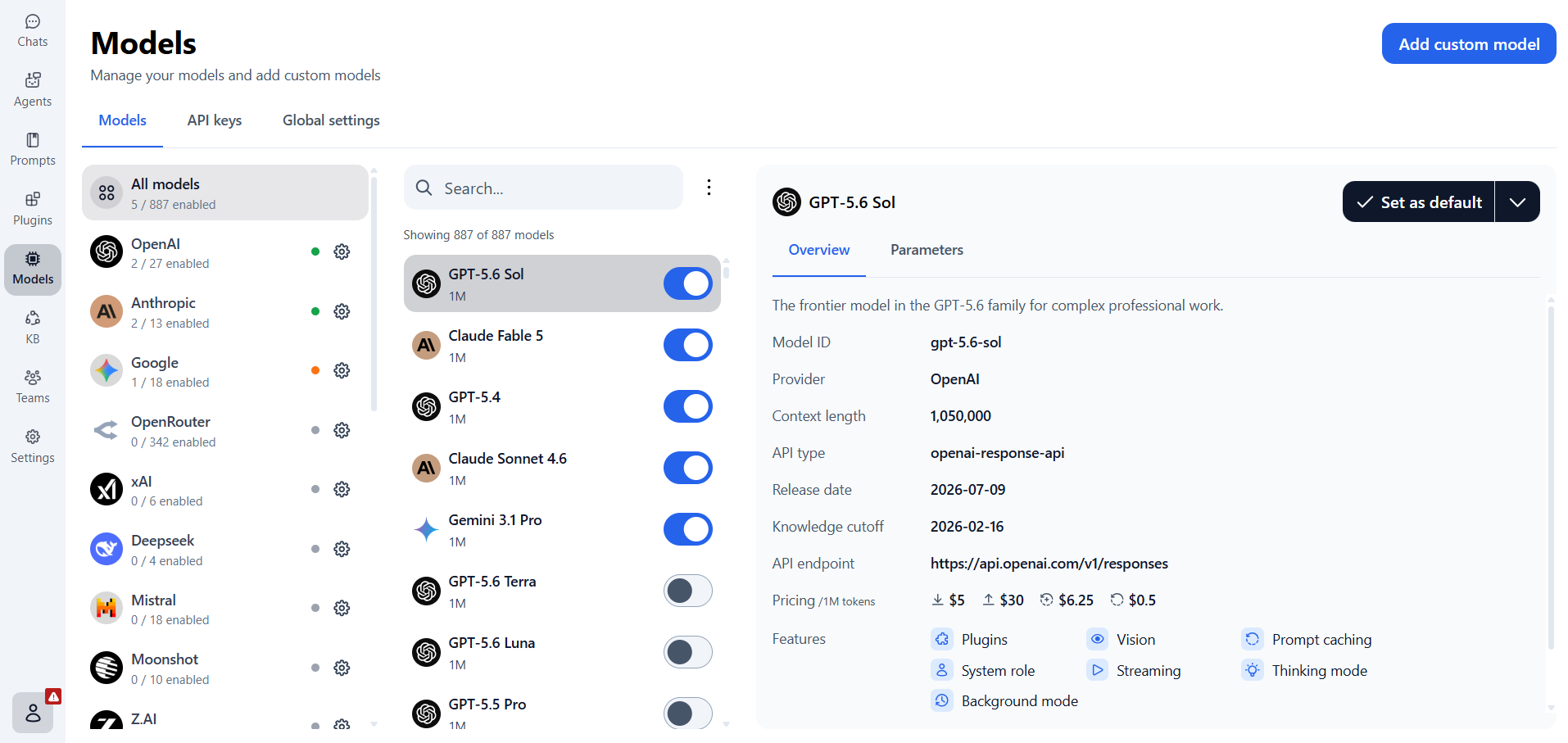
Open the Models Page
- Open TypingMind.
- Select Models in the left sidebar.
- Open the Models tab.
- Click Add custom model in the upper-right corner.
Enter the Model Details
Select Create Manually, then enter the model information:
- Name: a display name, such as
GPT-5.4 Mini via LLM API
- Model ID: the exact LLM API model ID, such as
gpt-5.4-mini
- Context Length: the model's context length, such as
128000
The Name only controls how the model appears in TypingMind. The Model ID is sent to LLM API and must match the ID on the models page.
INFO
Model IDs and context lengths vary. Treat the values above as an example and use the details for
your selected model.
Configure Authentication
In the Authentication tab, enter these values:
| Field |
Value |
| API Type |
OpenAI Chat Completions API |
| Endpoint URL |
https://api.llmapi.ai/v1/chat/completions |
| Authentication Type |
API Key via HTTP Header |
| Header Key |
Authorization |
| Header Value |
Bearer YOUR_LLM_API_KEY |
Replace YOUR_LLM_API_KEY with the key copied from the LLM API dashboard. Keep Bearer followed by one space before the key.
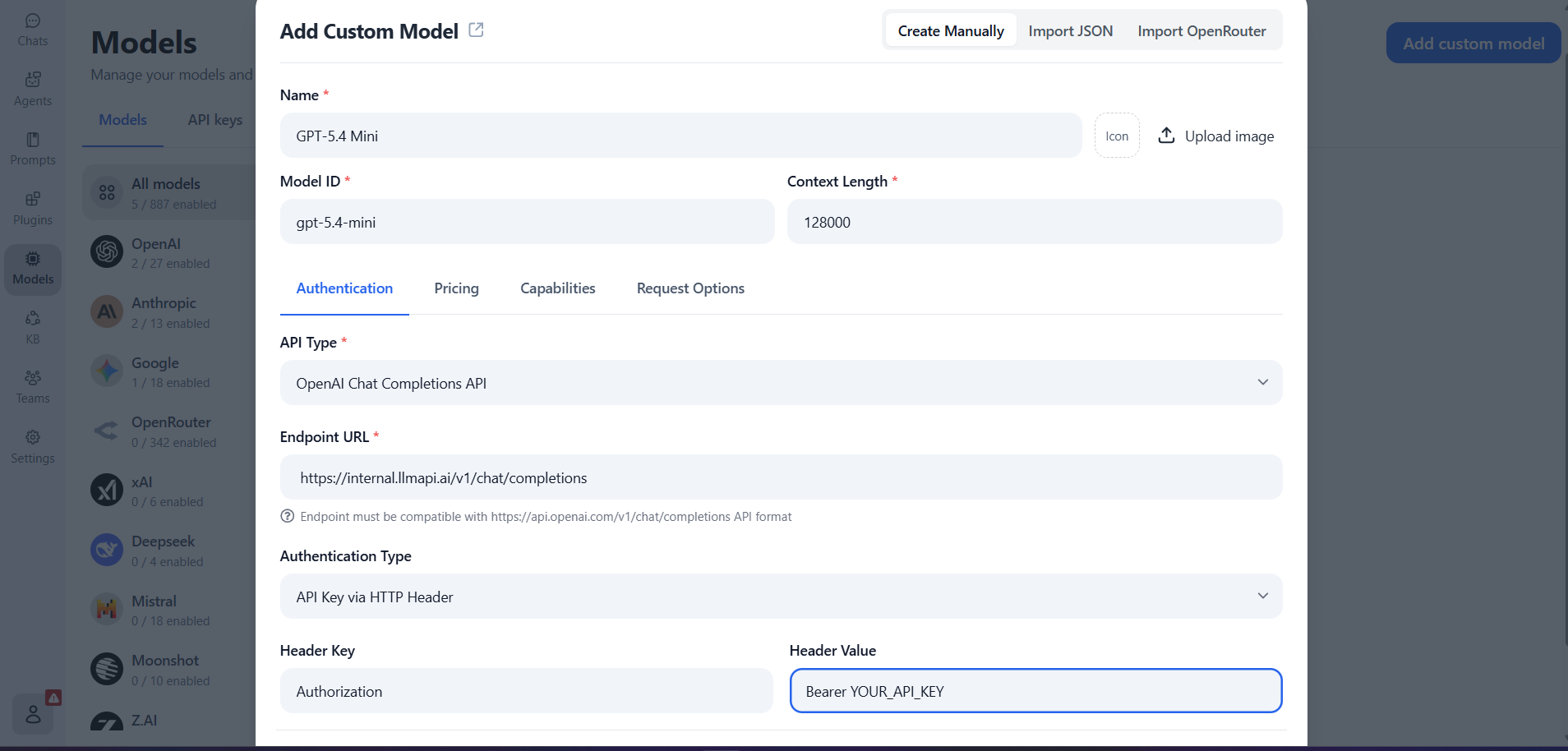
WARNING
The screenshot shows the location of each setting but was captured in a development environment.
Use the public https://api.llmapi.ai/v1/chat/completions endpoint from the table above, not the
internal hostname shown in the image.
Review Capabilities and Save
- Open the Capabilities tab and enable only the features supported by your selected model, such as vision, tool calling, or reasoning.
- Leave Request Options at their defaults unless the model requires a specific override.
- Click Test to verify the configuration.
- After the test succeeds, click Add Model or Save.
Incorrect capability settings can make TypingMind send fields that the model does not support. If you are unsure, save the model with the default capabilities first and enable additional features later.
Select and Test the Model
- Return to Chats.
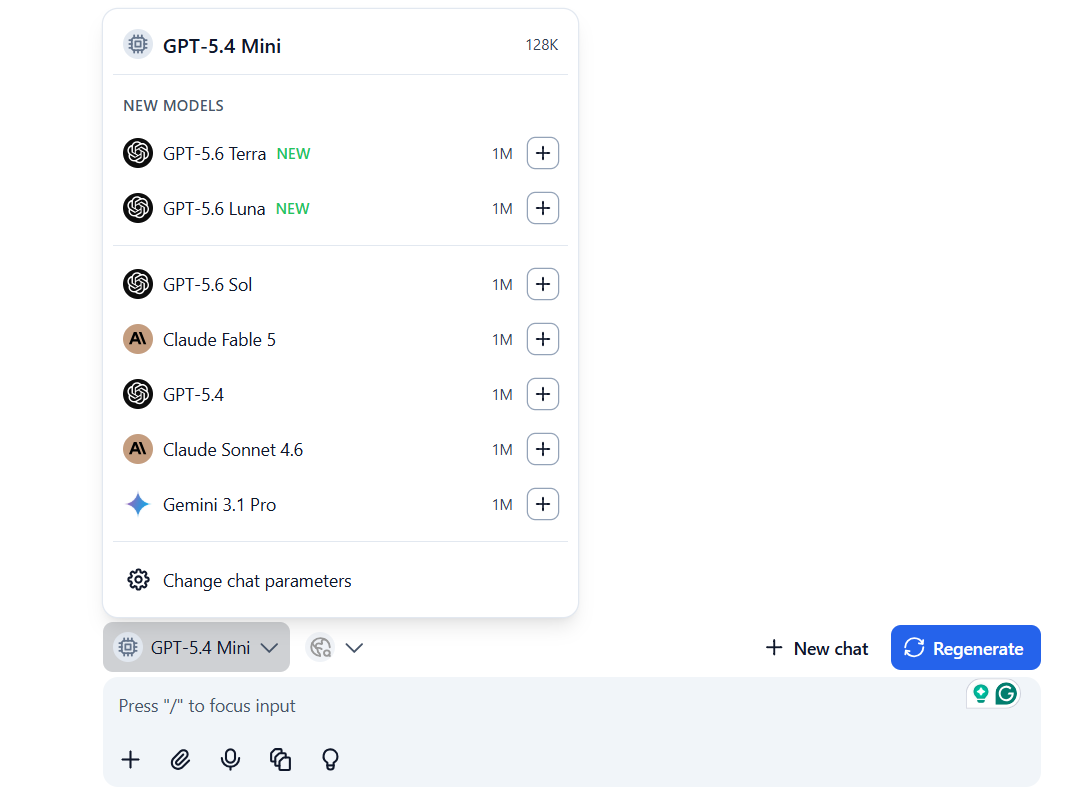
- Open the model selector above the message box.
- Select the custom model you just added.
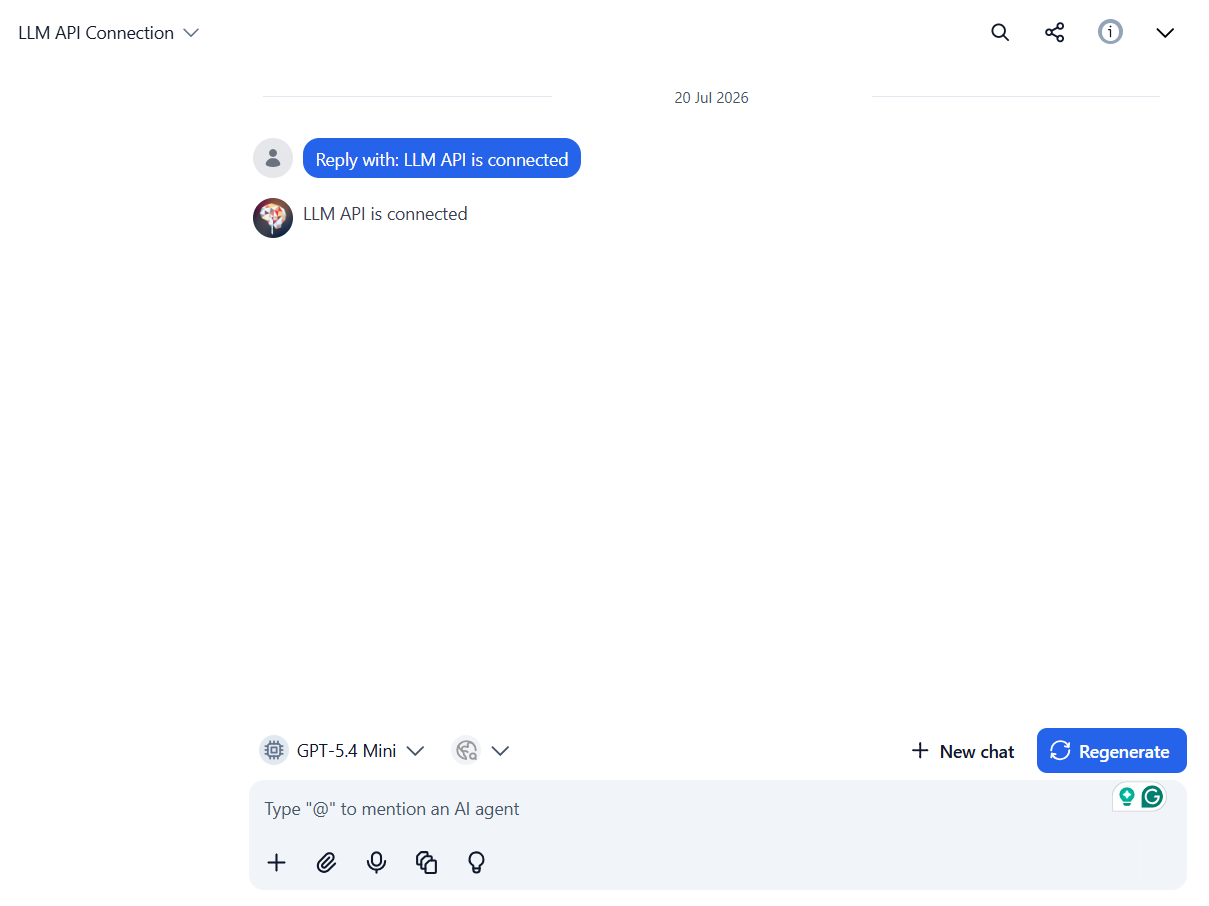
- Start a new chat and send a short message, such as
Reply with: LLM API is connected.
- Confirm that TypingMind returns a response.
Requests made with this model are routed through LLM API and appear in your LLM API usage analytics.
INFO
TypingMind stores API keys and chat data in your browser by default. Cloud Sync and proxy features
are optional; review your TypingMind privacy settings before enabling them.
Add More Models
TypingMind creates one custom model entry for each model ID. To use another LLM API model:
- Return to Models and click Add custom model.
- Reuse the same endpoint and authorization settings.
- Enter the new model's exact Model ID, Name, and Context Length.
- Test and save the new entry.
You can then switch between the models from the chat model selector without changing API keys.
Troubleshooting
401 Unauthorized
- Confirm the header key is exactly
Authorization.
- Confirm the header value starts with
Bearer , including the space.
- Paste the LLM API key again without quotation marks or leading or trailing spaces.
- Verify that the key is active in the LLM API dashboard.
404 or Endpoint Error
- Confirm the endpoint is exactly
https://api.llmapi.ai/v1/chat/completions.
- Select OpenAI Chat Completions API, not the Responses, Anthropic, or Gemini API type.
- Make sure the endpoint includes the full
/v1/chat/completions path.
Model Not Found
- Copy the exact model ID from the models page.
- Do not use the display name as the model ID.
- Confirm that the API key's IAM rules allow the selected model and provider.
The Model Does Not Appear in Chat
- Return to Models and search for the custom model.
- Make sure the model is enabled, then reopen the chat model selector.
- Refresh TypingMind if the saved model does not appear immediately.
A Capability Fails
- Edit the custom model and disable capabilities the model does not support.
- Verify support for vision, tool calling, reasoning, and other features on the model's details page.
- Start a new chat after changing model capabilities so the request does not reuse incompatible conversation data.
Next Steps
- Add other LLM API models with the same endpoint and API key.
- Configure model pricing in TypingMind if you want its local cost estimates to match the selected model.
- Review usage, cost, latency, and provider routing in the LLM API dashboard.