Open WebUI Integration
Open WebUI is a self-hosted chat interface with user management, chat history, model switching, and support for OpenAI-compatible APIs. Connect it to LLM API to access models from multiple providers through one API key and endpoint.
This guide installs Open WebUI with Docker, adds LLM API as an external OpenAI-compatible connection, and verifies the setup with a test chat.
Prerequisites
- Docker installed and running
- An LLM API account
- Port
3000 available on your computer
Setup
Get Your LLM API Key
- Open the LLM API dashboard.
- Click Create Key to Start.
- Copy the new API key. It is shown only once.
- Store the key securely, such as in a password manager.
WARNING
Treat your API key like a password. Do not commit it to source control or share it in screenshots.
Install Open WebUI with Docker
Pull the official Open WebUI image:
docker pull ghcr.io/open-webui/open-webui:main
Start the container:
docker run -d \
  -p 3000:8080 \
  -v open-webui:/app/backend/data \
  --name open-webui \
  ghcr.io/open-webui/open-webui:main
The -p 3000:8080 option exposes Open WebUI at port 3000. The open-webui volume preserves accounts, chats, and settings when the container is restarted or recreated.
INFO
Open WebUI requires WebSocket support. Make sure a firewall or reverse proxy does not block
WebSocket connections.
Open Open WebUI
- Visit http://localhost:3000.
- Create an account or sign in.
The first account created on a new Open WebUI installation receives administrator privileges. You need an administrator account to configure provider connections.
Open the Connection Settings
- Open Admin Settings.
- Select Connections.
- Find OpenAI API and click Manage or the + button.
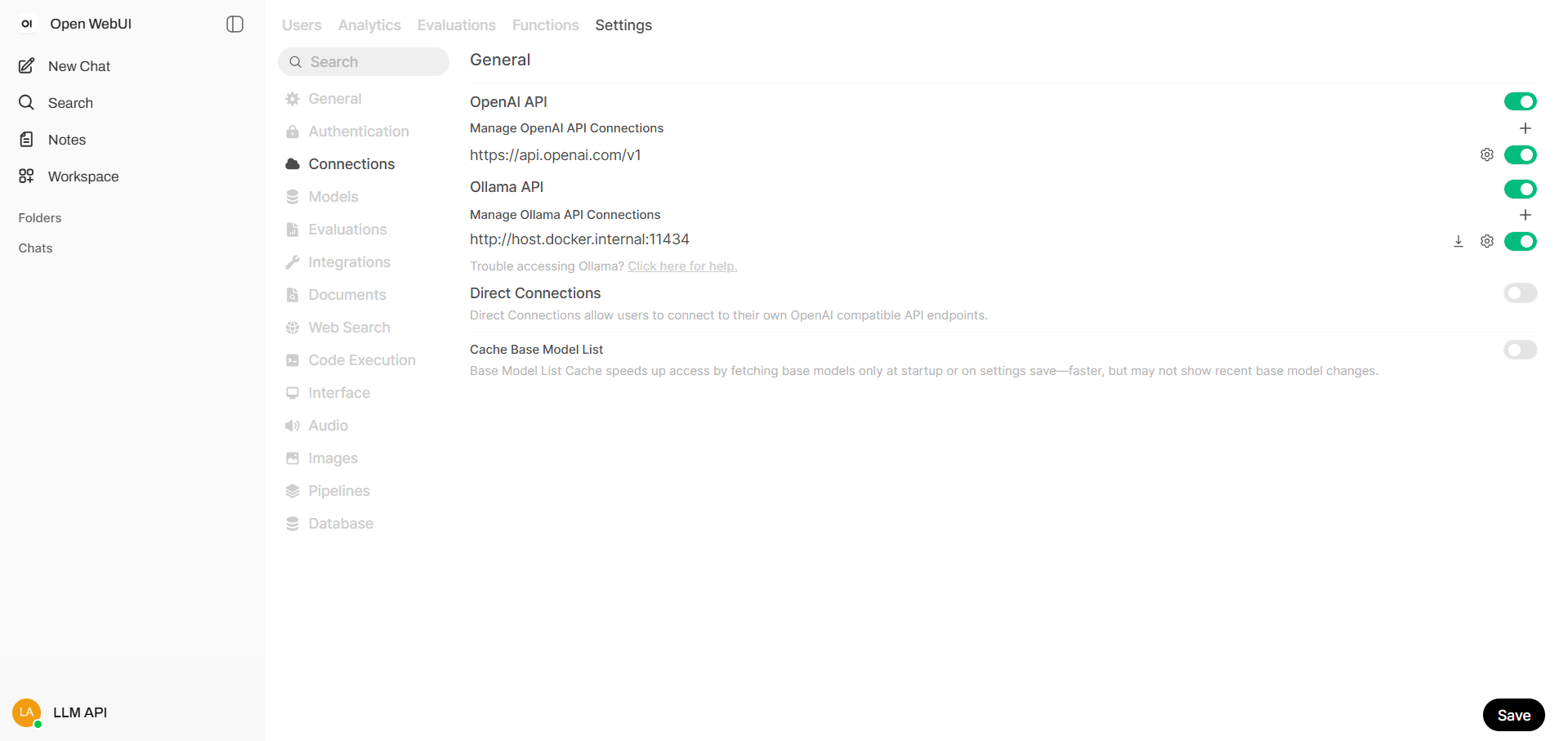
- Click Add New Connection.
Add LLM API
Configure the connection with these values:
- Connection Type:
External
- URL:
https://api.llmapi.ai/v1
- Auth:
Bearer
- API Key: your LLM API key
- API Type:
Chat Completions
- Model IDs: leave empty to load all available models
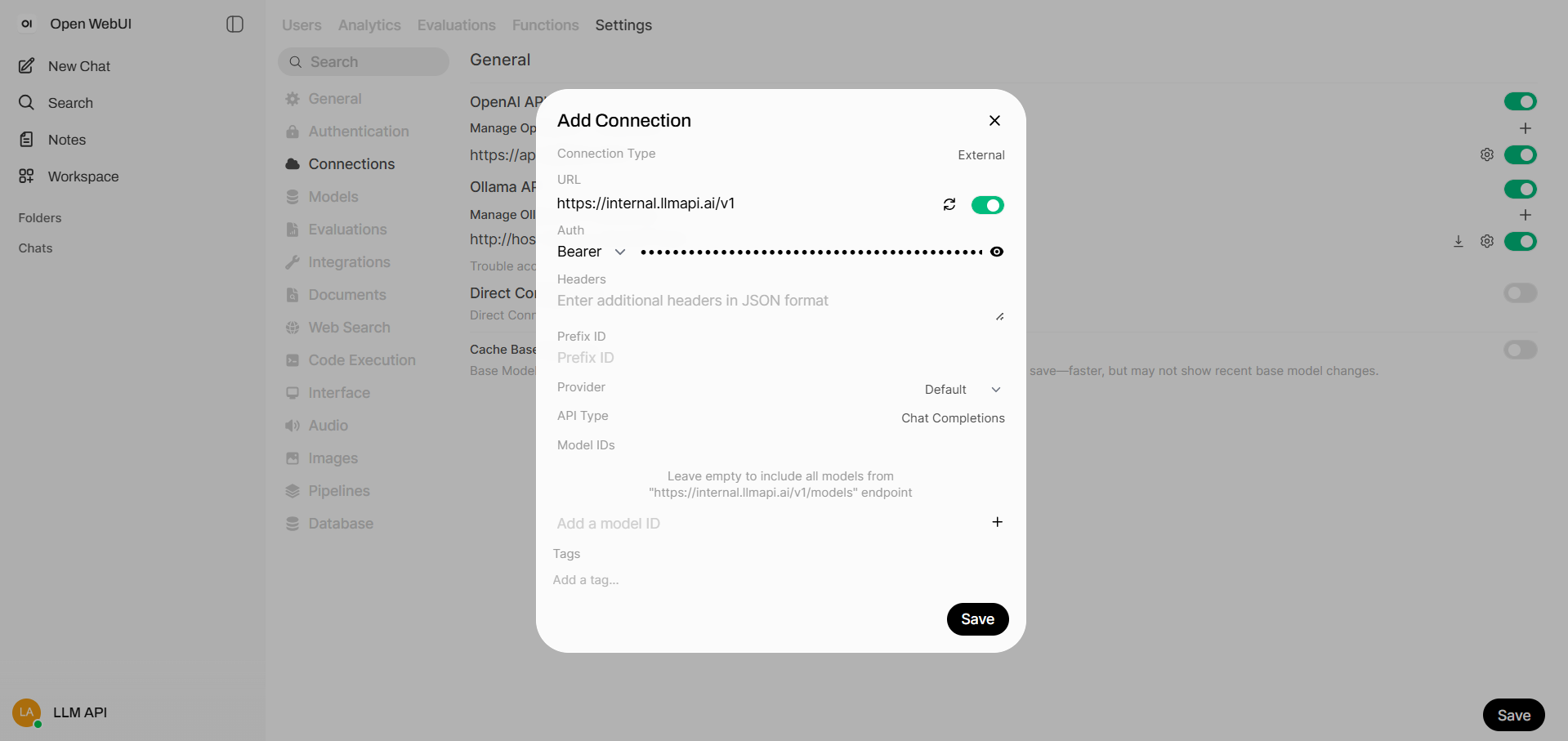
Click Save. Open WebUI will request the available model list from LLM API.
INFO
To show only selected models, add their exact IDs to Model IDs. You can copy model IDs from
the models page.
Test the Connection
- Return to New Chat.
- Open the model selector and choose an LLM API model.
- Send a test message.
You do not need to download the model locally. Open WebUI sends the request to LLM API, and the request appears in your LLM API usage analytics.
Troubleshooting
Models Do Not Appear
- Confirm that the connection URL is exactly
https://api.llmapi.ai/v1.
- Verify that the API key is active and was entered without extra spaces.
- Leave Model IDs empty to enable automatic model discovery.
- Save the connection again, then refresh Open WebUI.
Open WebUI Does Not Start
Check that the container is running:
docker ps --filter name=open-webui
Inspect its logs for startup errors:
docker logs open-webui
If port 3000 is already in use, recreate the container with a different host port, such as -p 3001:8080, and open http://localhost:3001.
Next Steps