LobeHub Integration
LobeHub is an AI chat workspace with support for multiple models, agents, and custom providers. Connect it to LLM API to use models from multiple providers through one API key and endpoint.
This guide adds LLM API as a custom OpenAI-compatible provider, imports the available models, and verifies the connection in a chat.
Prerequisites
- An LLM API account
- Access to LobeHub
Setup
Get Your LLM API Key
- Open the LLM API dashboard.
- Click Create Key to Start.
- Copy the new API key. It is shown only once.
- Store the key securely, such as in a password manager.
WARNING
Treat your API key like a password. Do not share it or include it in screenshots.
Open the Provider Settings
- Open LobeHub and go to Settings.
- Under Agent, select Provider.
- Click the + button beside the provider search field.
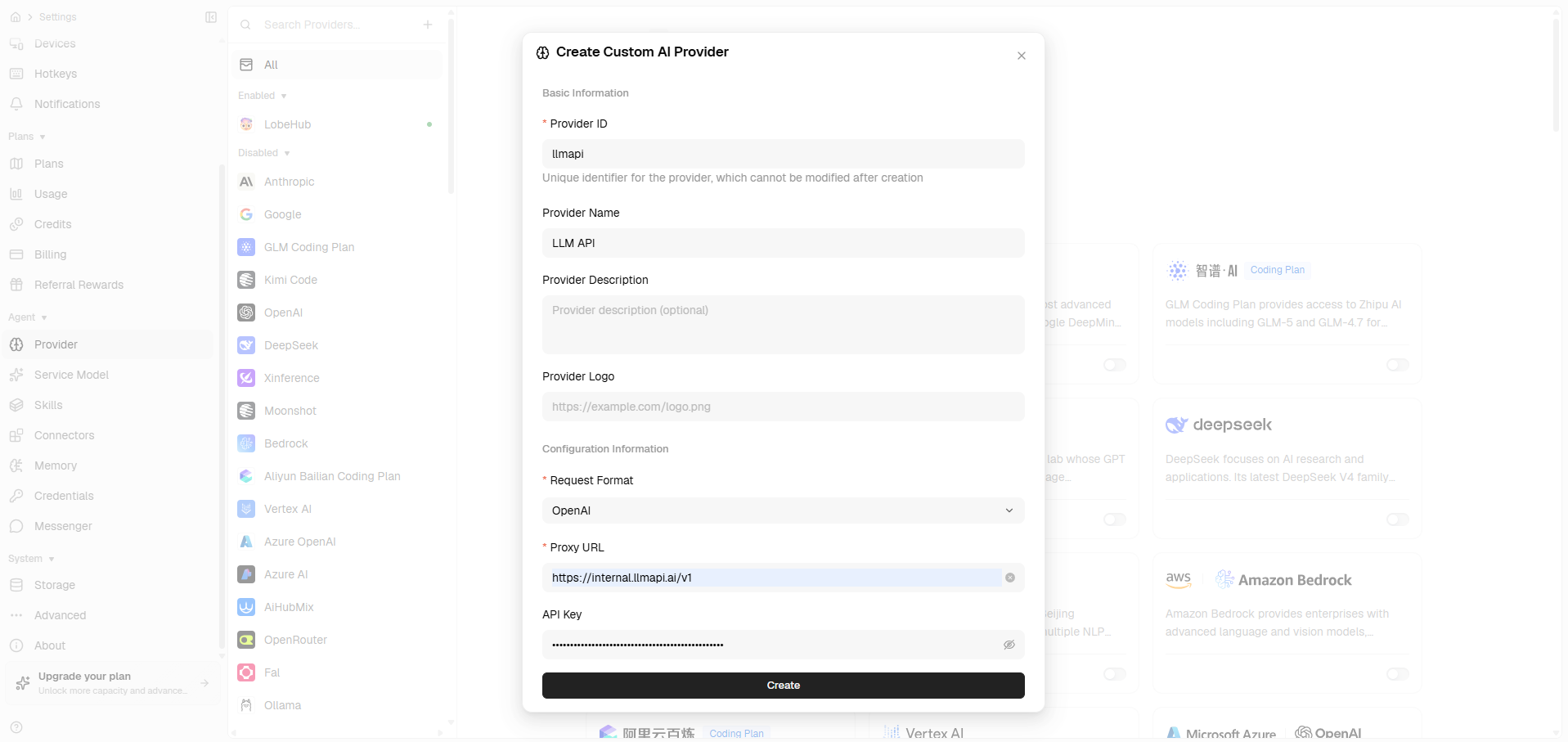
Create the LLM API Provider
Enter these values in Create Custom AI Provider:
- Provider ID:
llmapi
- Provider Name:
LLM API
- Request Format:
OpenAI
- Proxy URL:
https://api.llmapi.ai/v1
- API Key: your LLM API key
The provider description and logo are optional. Click Create when the required fields are complete.
INFO
The provider ID is permanent after creation. Use llmapi so the provider is easy to identify in
your LobeHub configuration.
Fetch the Available Models
- Select LLM API from the provider list.
- Turn on the provider with the toggle in the upper-right corner.
- Confirm that the API key and proxy URL are filled in.
- Click Fetch models under Model List.
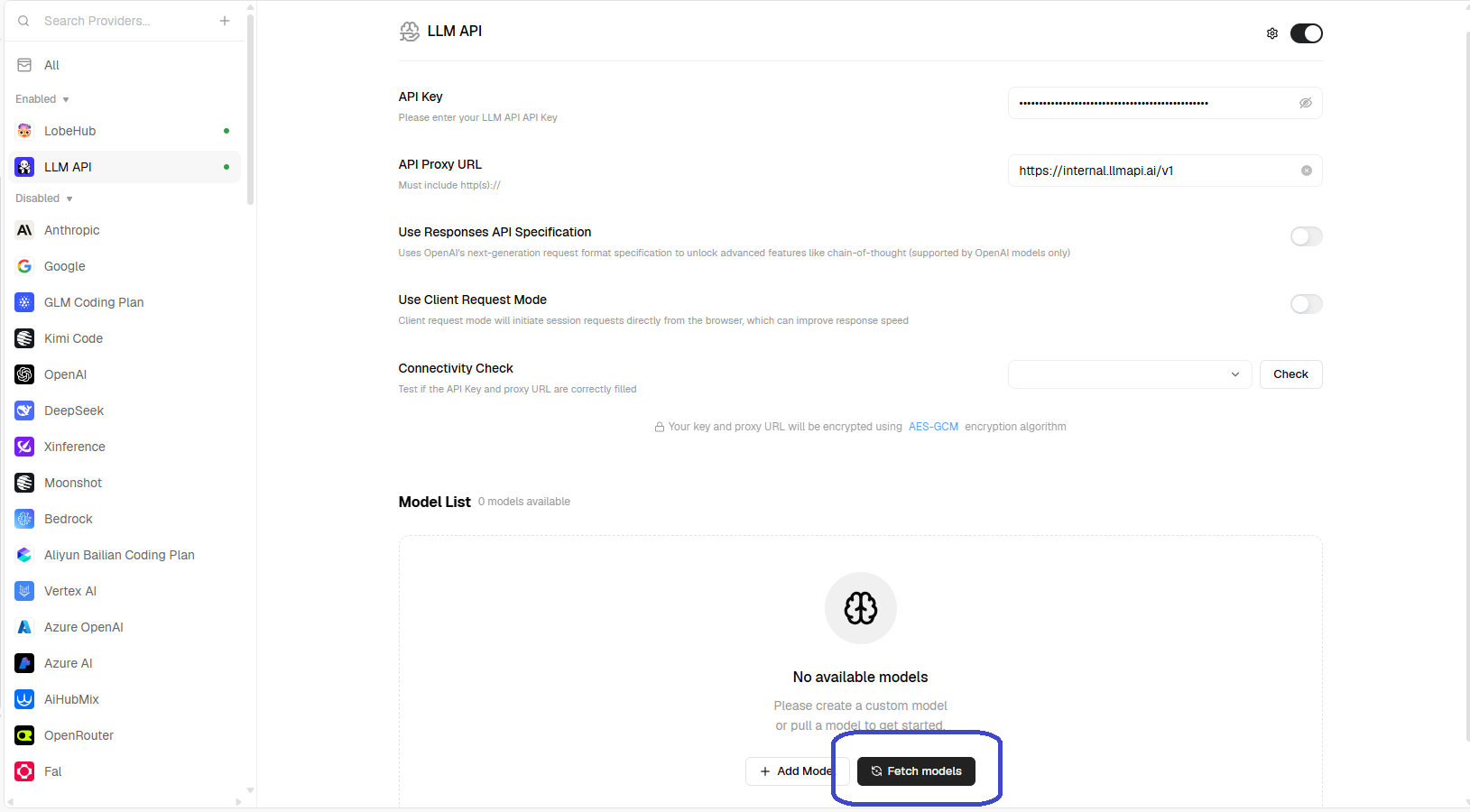
LobeHub loads the models available to your LLM API key. You can also use Connectivity Check to verify the key and endpoint before opening a chat.
For the initial setup, leave Use Responses API Specification and Use Client Request Mode disabled. You can enable the Responses API later for a compatible model and workflow.
Select a Model and Test the Connection
- Return to the chat screen and start a new topic.
- Open the model selector in the message composer.
- Choose a model imported from LLM API.
- If the model is offered by more than one provider, select LLM API under Use this model from.
- Send a test message.
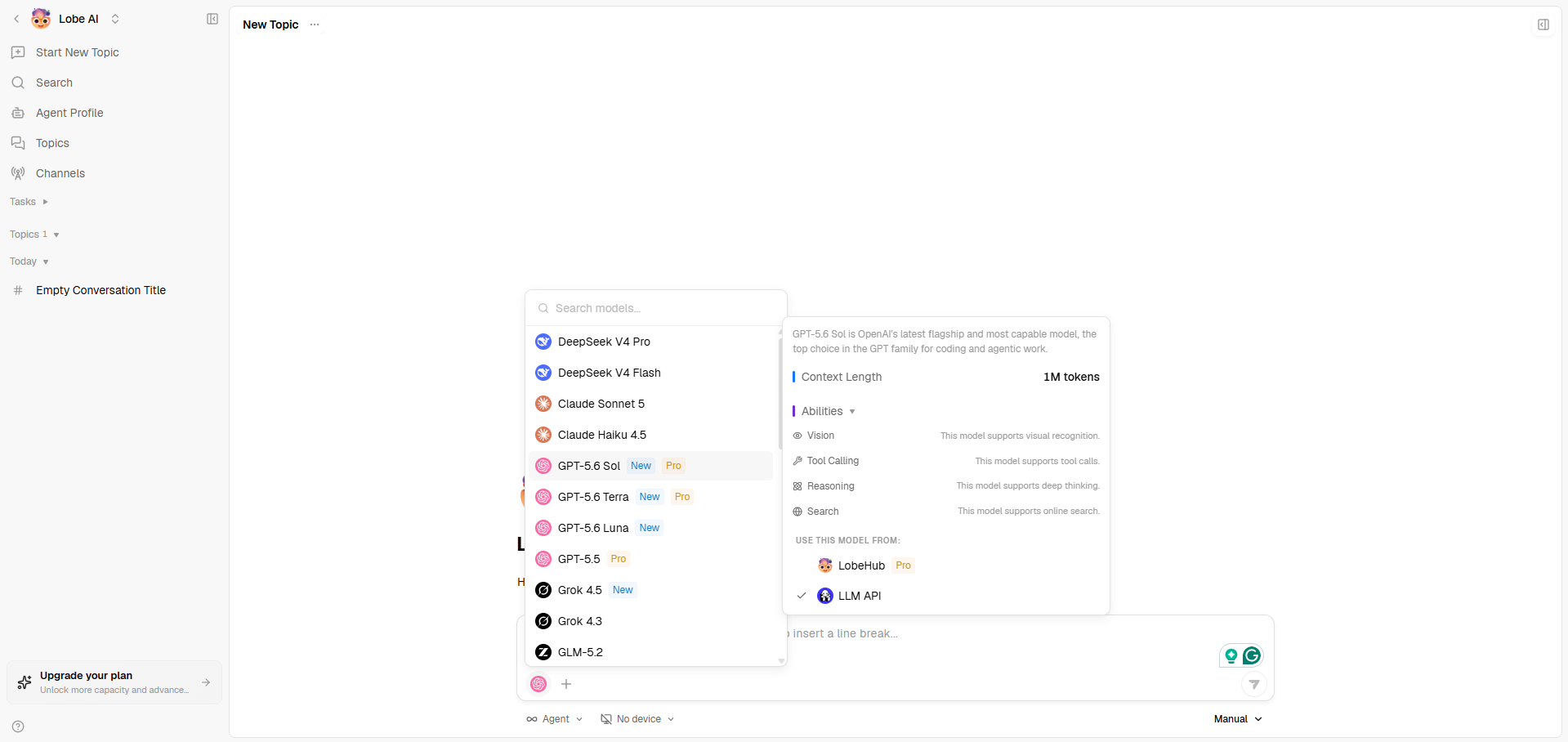
The request is routed through LLM API and appears in your LLM API usage analytics.
Troubleshooting
No Models Appear
- Confirm that the proxy URL is exactly
https://api.llmapi.ai/v1.
- Verify that the API key is active and does not contain extra spaces.
- Make sure the LLM API provider is enabled.
- Click Fetch models again, then refresh LobeHub.
Connectivity Check Fails
- Re-enter the API key and proxy URL.
- Confirm that your network can reach
api.llmapi.ai.
- Leave Use Client Request Mode disabled and retry the check.
Requests Use a Different Provider
Some model names can appear under several providers. Open the model selector, choose the model, and select LLM API under Use this model from before sending the message.
A Model Returns an Access or Billing Error
Confirm that your LLM API key has access to the selected model and that your account has sufficient credits. You can choose another model from the models page, then fetch the model list again in LobeHub.
Next Steps
- Browse the available LLM API models.
- Review requests and costs in the LLM API usage analytics.
- Add model-specific agents in LobeHub after confirming the provider connection.