LibreChat Integration
LibreChat is a self-hosted AI chat interface with chat history, model switching, agents, and support for custom OpenAI-compatible endpoints. Connect it to LLM API to access models from multiple providers through one API key and endpoint.
This guide installs LibreChat locally with Docker Compose, adds LLM API as a custom endpoint, and verifies the connection in a chat.
Prerequisites
- Git installed
- Docker Desktop installed and running
- An LLM API account
- Port
3080 available on your computer
INFO
Already running LibreChat? Keep your existing installation and begin with Add Your LLM API
Key.
Setup
Download LibreChat
Clone the LibreChat repository and open its directory:
git clone https://github.com/danny-avila/LibreChat.git
cd LibreChat
Create your local environment file from the included example:
cp .env.example .env
On Windows Command Prompt, use copy .env.example .env instead.
Add Your LLM API Key
- Open the LLM API dashboard.
- Click Create Key to Start.
- Copy the new key. It is shown only once.
- Add it to the
.env file in the LibreChat project root:
LLMAPI_API_KEY=llmapi_your_api_key_here
WARNING
Treat your API key like a password. Keep it in .env, and do not commit it to source control or
paste it directly into librechat.yaml.
Configure the LLM API Endpoint
Create librechat.yaml in the LibreChat project root and add this configuration:
version: 1.3.13
cache: true

endpoints:
  custom:
    - name: "LLM API"
      apiKey: "${LLMAPI_API_KEY}"
      baseURL: "https://api.llmapi.ai/v1"
      models:
        default:
          - "gpt-5.4-mini"
        fetch: true
      titleConvo: true
      titleModel: "current_model"
      modelDisplayLabel: "LLM API"
fetch: true lets LibreChat load the models available to your LLM API key. The default entry provides an initial model; you can replace it with any exact model ID from the models page.
WARNING
If you already have a librechat.yaml file, merge this item into its existing endpoints.custom
list. Do not replace your other settings or add a second endpoints key.
Mount the Configuration in Docker
Docker must mount librechat.yaml into the LibreChat API container. Create an override file from the included example:
cp docker-compose.override.yml.example docker-compose.override.yml
Open docker-compose.override.yml and make sure it contains this volume mount:
services:
  api:
    volumes:
      - type: bind
        source: ./librechat.yaml
        target: /app/librechat.yaml
If the example already contains this block as comments, uncomment it. Keep any other overrides you use under the same api service entry.
Start LibreChat
Start the services in the background:
docker compose up -d
The first launch pulls the required images and can take a few minutes. Open http://localhost:3080, then register or sign in.
INFO
The first account registered on a new LibreChat installation becomes the administrator account.
If LibreChat was already running when you changed the configuration, restart it:
docker compose down
docker compose up -d
Select a Model and Test the Connection
- Start a new chat.
- Open the model selector.
- Select LLM API, then choose a model.
- Send a test message.
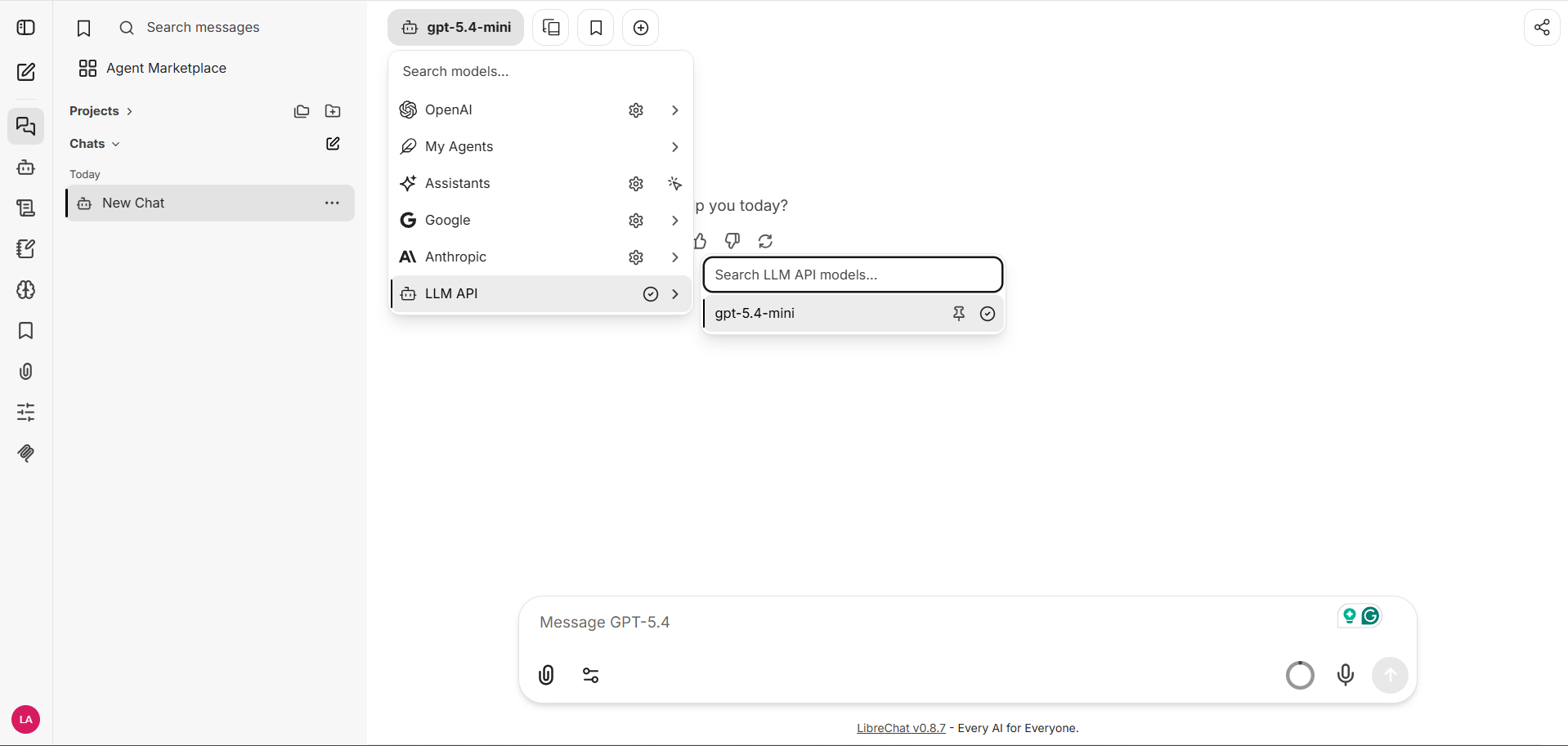
LibreChat sends the request through LLM API. You can confirm it in your LLM API usage analytics.
How the Configuration Works
The integration uses three files in the LibreChat project root:
| File |
Purpose |
.env |
Stores the LLM API key outside the YAML configuration |
librechat.yaml |
Defines LLM API as an OpenAI-compatible custom endpoint |
docker-compose.override.yml |
Makes librechat.yaml available inside the Docker container |
LibreChat must be restarted after you change any of these files.
Troubleshooting
LLM API Does Not Appear
Check all three parts of the configuration:
.env contains LLMAPI_API_KEY=....librechat.yaml contains the LLM API item under endpoints.custom.docker-compose.override.yml mounts librechat.yaml at /app/librechat.yaml.
Then restart LibreChat and inspect the API logs:
docker compose down
docker compose up -d
docker compose logs api
YAML indentation errors, a missing environment variable, and an unmounted configuration file are the most common causes.
Models Do Not Load
- Confirm that
baseURL is exactly https://api.llmapi.ai/v1.
- Confirm that
models.fetch is set to true.
- Verify that the LLM API key is active and has access to the requested model.
- Add a valid model ID from the models page under
models.default, then restart LibreChat.
Requests Return an Authentication Error
Make sure the .env variable name matches the YAML reference exactly:
.env:             LLMAPI_API_KEY=llmapi_...
librechat.yaml:   apiKey: "${LLMAPI_API_KEY}"
Remove accidental spaces or quotes around the value in .env, save the files, and restart LibreChat.
Port 3080 Is Already in Use
Add a port override under the existing api service in docker-compose.override.yml:
services:
  api:
    ports:
      - "3081:3080"
Restart the services, then open http://localhost:3081.
Next Steps