Jan Integration
Jan is an open-source desktop chat application that can run local models and connect to cloud providers. Connect it to LLM API to use models from multiple providers through one API key and endpoint.
This guide adds LLM API as a custom OpenAI-compatible provider, loads the models available to your API key, and verifies the connection in a chat.
Prerequisites
- An LLM API account
- The Jan desktop application installed
Setup
Get Your LLM API Key
- Open the LLM API dashboard.
- Click Create Key to Start.
- Copy the new API key. It is shown only once.
- Store the key securely, such as in a password manager.
WARNING
Treat your API key like a password. Do not share it or include it in screenshots.
Open the Custom Provider Dialog
- Open Jan and select Settings in the left sidebar.
- Find Model Providers in the settings sidebar.
- Click the + button beside Model Providers.
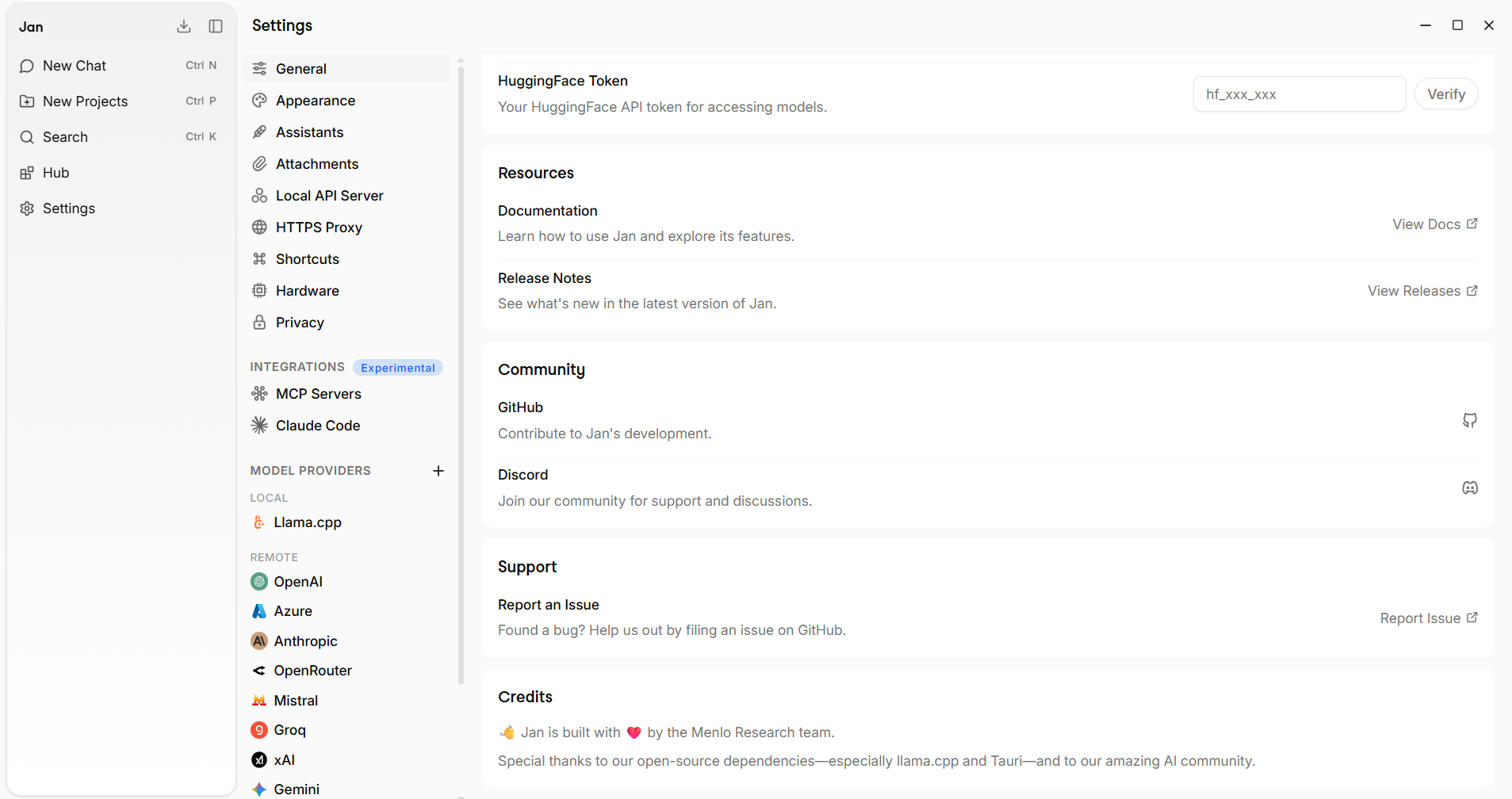
Add LLM API
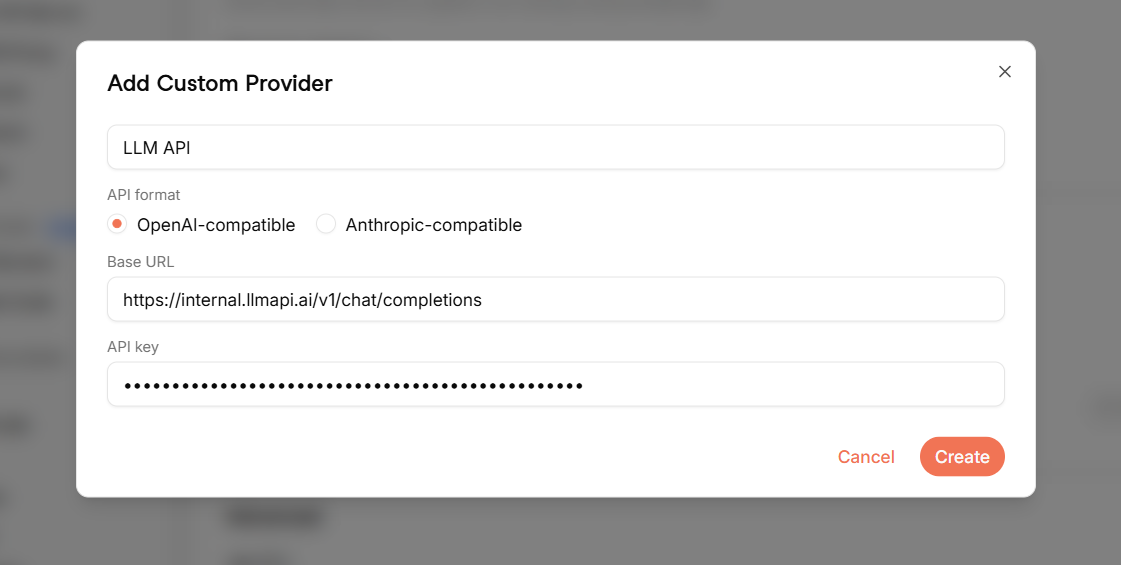
Enter these values in Add Custom Provider:
- Provider name:
LLM API
- API format:
OpenAI-compatible
- Base URL:
https://api.llmapi.ai/v1/chat/completions
- API key: your LLM API key
WARNING
The screenshot was captured in a development environment. Use the public
https://api.llmapi.ai/v1 endpoint above, not the internal hostname shown in the image.
Click Create. Jan adds the provider and requests its available models from the LLM API /models endpoint.
Select a Model and Test the Connection
- Return to New Chat.
- Open the model selector.
- Choose a model from the LLM API provider.
- Send a test message.
The request is routed through LLM API and appears in your LLM API usage analytics. You can switch between LLM API cloud models and local models at any time.
Troubleshooting
No Models Appear
- Confirm that the base URL is exactly
https://api.llmapi.ai/v1.
- Verify that the API key is active and does not contain leading or trailing spaces.
- Select LLM API under Model Providers and refresh its model list.
- Copy an exact model ID from the models page and add it manually if automatic discovery is unavailable.
Authentication or 401 Error
- Paste the API key again without quotation marks or spaces.
- Confirm that the key is active in the LLM API dashboard.
- Make sure the selected model belongs to the LLM API provider.
404 or Connection Error
- Include
/v1 in the base URL, but do not add /chat/completions.
- Confirm that your computer can make outbound HTTPS requests to
api.llmapi.ai.
- Recreate the custom provider if its API format was not set to OpenAI-compatible.
Model Not Found or Access Denied
- Copy the exact model ID from the models page.
- Confirm that the API key's IAM rules allow the selected model and provider.
- Make sure your LLM API account has sufficient credits.
Next Steps
- Browse the available LLM API models.
- Review requests, costs, and provider routing in the LLM API usage analytics.
- Create Jan assistants that use an LLM API model after confirming the connection.