Google Apps Script Integration
Google Apps Script can call LLM API directly with its built-in UrlFetchApp service. This guide creates an ASK_AI custom function for Google Sheets, stores the LLM API key outside the source code, and sends prompts to Gemini or OpenAI models through the OpenAI-compatible chat completions endpoint.
Prerequisites
- An LLM API account with an API key
- A Google Sheet with permission to edit its Apps Script project
Setup
Get Your LLM API Key
- Open the LLM API dashboard.
- Click Create Key to Start.
- Copy the new API key. It is shown only once.
- Store the key securely, such as in a password manager.
WARNING
Treat your API key like a password. Do not paste it into the script source, share it, or include
it in screenshots.
Store the Key in Script Properties
- Open the Google Sheet that will use the function.
- Select Extensions → Apps Script.
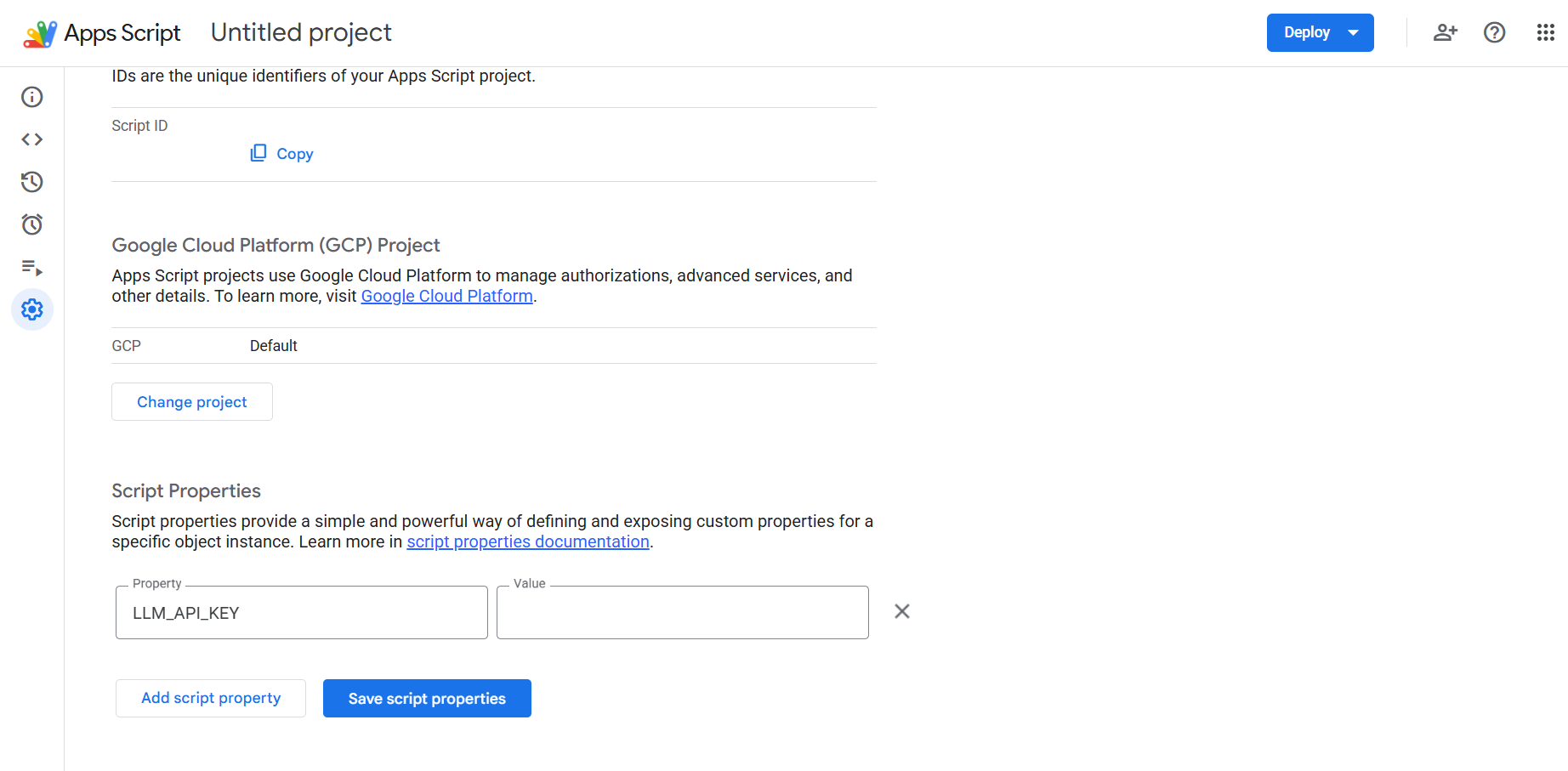
- In the Apps Script editor, click Project Settings (the gear icon) in the left sidebar.
- Scroll to Script Properties and click Add script property.
- Enter
LLM_API_KEY in the Property field and paste your LLM API key into Value.
- Click Save script properties.
INFO
Script properties keep the key out of your source code, but people who can edit the Apps Script
project may still be able to access it. Share the project only with trusted editors.
Add the Function
Open Code.gs, replace its contents with the following code, and click Save project:
function ASK_AI(prompt) {
  if (!prompt) return "Please provide a prompt.";

  const apiKey = PropertiesService.getScriptProperties().getProperty("LLM_API_KEY");
  if (!apiKey) return "Error: LLM_API_KEY is not configured.";

  const url = "https://api.llmapi.ai/v1/chat/completions";
  const payload = {
    model: "gemini-2.5-pro",
    messages: [{ role: "user", content: String(prompt) }],
  };

  const options = {
    method: "post",
    headers: {
      Authorization: "Bearer " + apiKey,
    },
    contentType: "application/json",
    payload: JSON.stringify(payload),
    muteHttpExceptions: true,
  };

  try {
    const response = UrlFetchApp.fetch(url, options);
    const status = response.getResponseCode();
    const json = JSON.parse(response.getContentText());

    if (
      status >= 200 &&
      status < 300 &&
      json.choices &&
      json.choices[0] &&
      json.choices[0].message &&
      json.choices[0].message.content
    ) {
      return json.choices[0].message.content.trim();
    }

    return "API Error (" + status + "): " + JSON.stringify(json);
  } catch (error) {
    return "Connection Error: " + error.toString();
  }
}

/** Runs a test request from the Apps Script editor. */
function TEST_ASK_AI() {
  console.log(ASK_AI("Hello"));
}
The example uses gemini-2.5-pro. To use an OpenAI model instead, change the model value to an available OpenAI model ID such as gpt-5. You can browse model IDs and providers on the models page.
Authorize and Test the Script
- Select
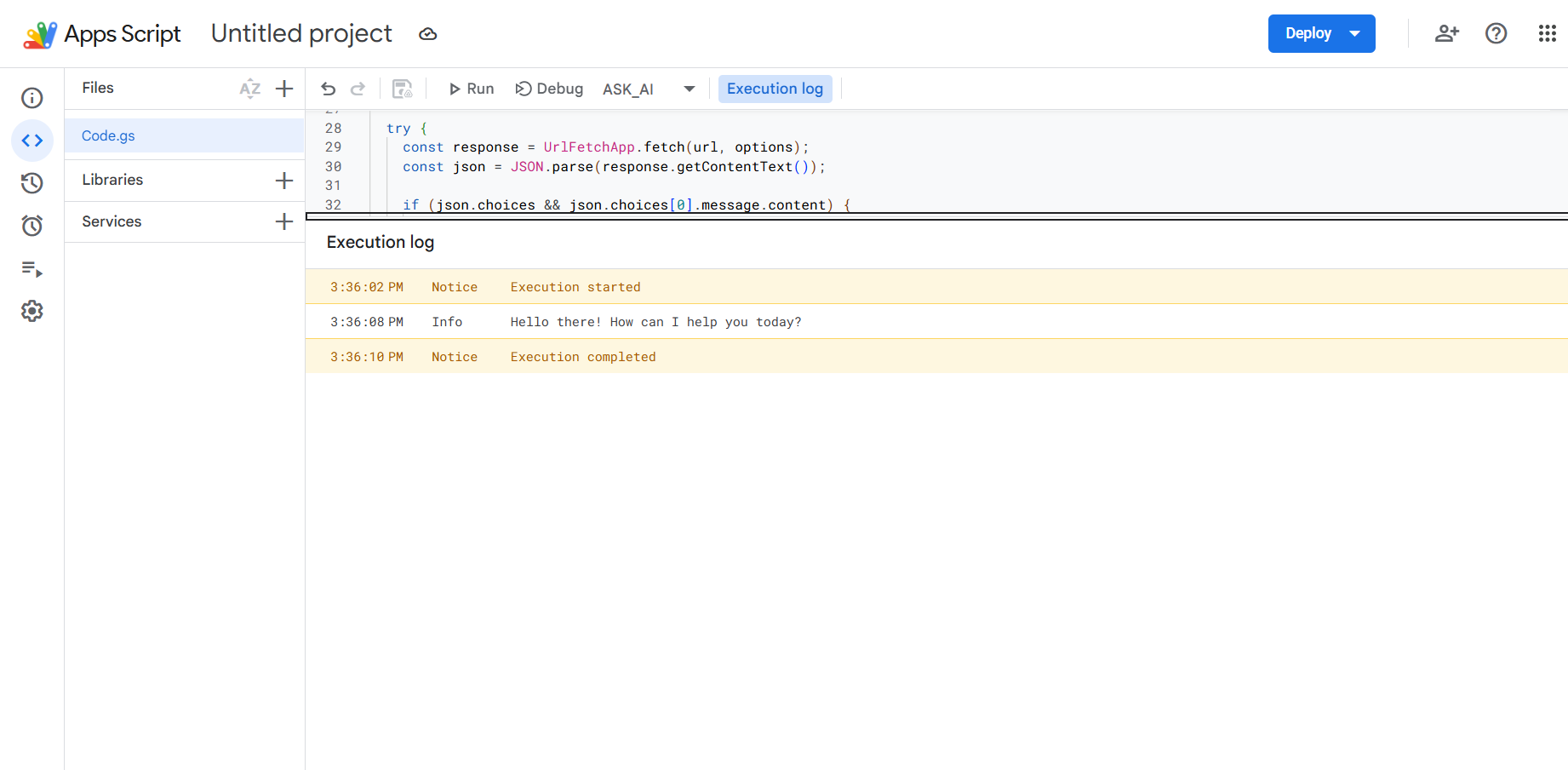
TEST_ASK_AI from the function menu in the Apps Script toolbar.
- Click Run.
- Review and accept Google's authorization prompt for the script.
- Open Execution log and confirm that the model returned a response.
INFO
Google displays an authorization prompt the first time the script uses UrlFetchApp. Review the
requested permissions before allowing access.
Use the Function in Google Sheets
Return to the spreadsheet and enter a formula in a cell:
=ASK_AI("Write a one-sentence welcome message")
You can also pass the contents of another cell:
=ASK_AI(A2)
The function sends the prompt to LLM API and writes the model's response into the formula cell.
Troubleshooting
LLM_API_KEY Is Not Configured
Confirm that the script property is named exactly LLM_API_KEY, then save the project settings and run TEST_ASK_AI again.
The Request Returns 401 or 403
- Verify that the API key is active and does not contain extra spaces.
- Check any usage limits or IAM rules attached to the key.
- Confirm that the selected model is allowed for the key.
Google Does Not Show an Authorization Prompt
Run TEST_ASK_AI from the Apps Script editor before using ASK_AI in a spreadsheet cell. Custom functions cannot display an authorization dialog from inside a cell.
A Cell Stays on Loading...
Apps Script custom functions have execution limits, and model responses can take time. Try a shorter prompt or a faster model. Avoid filling a large range with ASK_AI formulas at once because every formula sends a separate API request.
Next Steps
- Browse the available LLM API models and change the
model value.
- Reference cells to build reusable summarization, classification, or extraction formulas.
- Review requests and costs in the LLM API usage analytics.