Flowise Integration
Flowise is an open-source visual builder for LLM applications. Its OpenAI chat-model nodes support a custom base path, so you can connect them to LLM API and use models from multiple providers with one API key.
This guide creates a reusable LLM API credential, configures an OpenAI-compatible model, and builds a minimal chatflow to test the connection.
Prerequisites
- A running Flowise instance or Flowise Cloud account
- An LLM API account
- Permission to create credentials and chatflows in your Flowise workspace
Choose the Right Node
Flowise provides two suitable chat-model nodes:
| Node |
Use it when |
OpenAI (ChatOpenAI) |
Your model is available in the node's Model Name list |
OpenAI Custom Model (ChatOpenAI Custom) |
You need to type an LLM API model ID that is not in the list |
Both nodes use an OpenAI API credential and the same LLM API base path. The screenshots below use the OpenAI node; the custom node follows the same setup and exposes Model Name as a text field.
Setup
Get Your LLM API Key
- Open the LLM API dashboard.
- Click Create Key to Start.
- Copy the new key. It is shown only once.
- Store it securely, such as in a password manager.
WARNING
Treat your API key like a password. Do not include it in exported chatflows, screenshots, or
source control.
Create a Reusable Credential
You can create the credential from either place in Flowise:
- Open Credentials from the left navigation, click Add Credential, and select OpenAI API.
- From an OpenAI chat-model node, open Connect Credential and click Create New.
Enter these values:
- Credential Name:
LLM API
- OpenAI API Key: your LLM API key
Click Save.
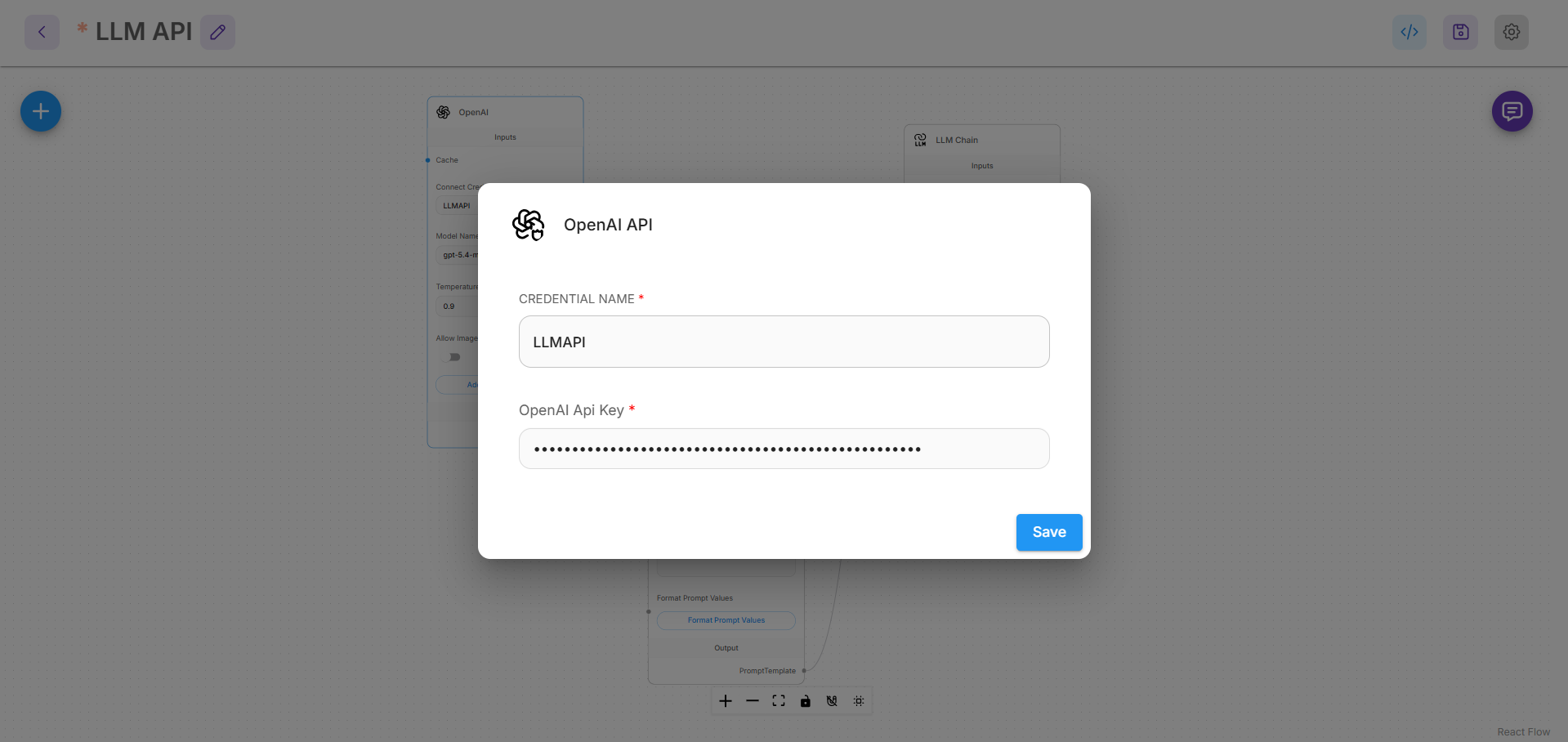
The credential can be selected again in other chatflows, so you do not need to paste the key into every node.
Add an OpenAI-Compatible Model
- Create a new Chatflow.
- Click the + button to open the node menu.
- Under Chat Models, add OpenAI.
- In Connect Credential, select the
LLM API credential.
- Set Model Name to the model you want to use, such as
gpt-5.4-mini.
- Click Additional Parameters and set Base Path to:
https://api.llmapi.ai/v1
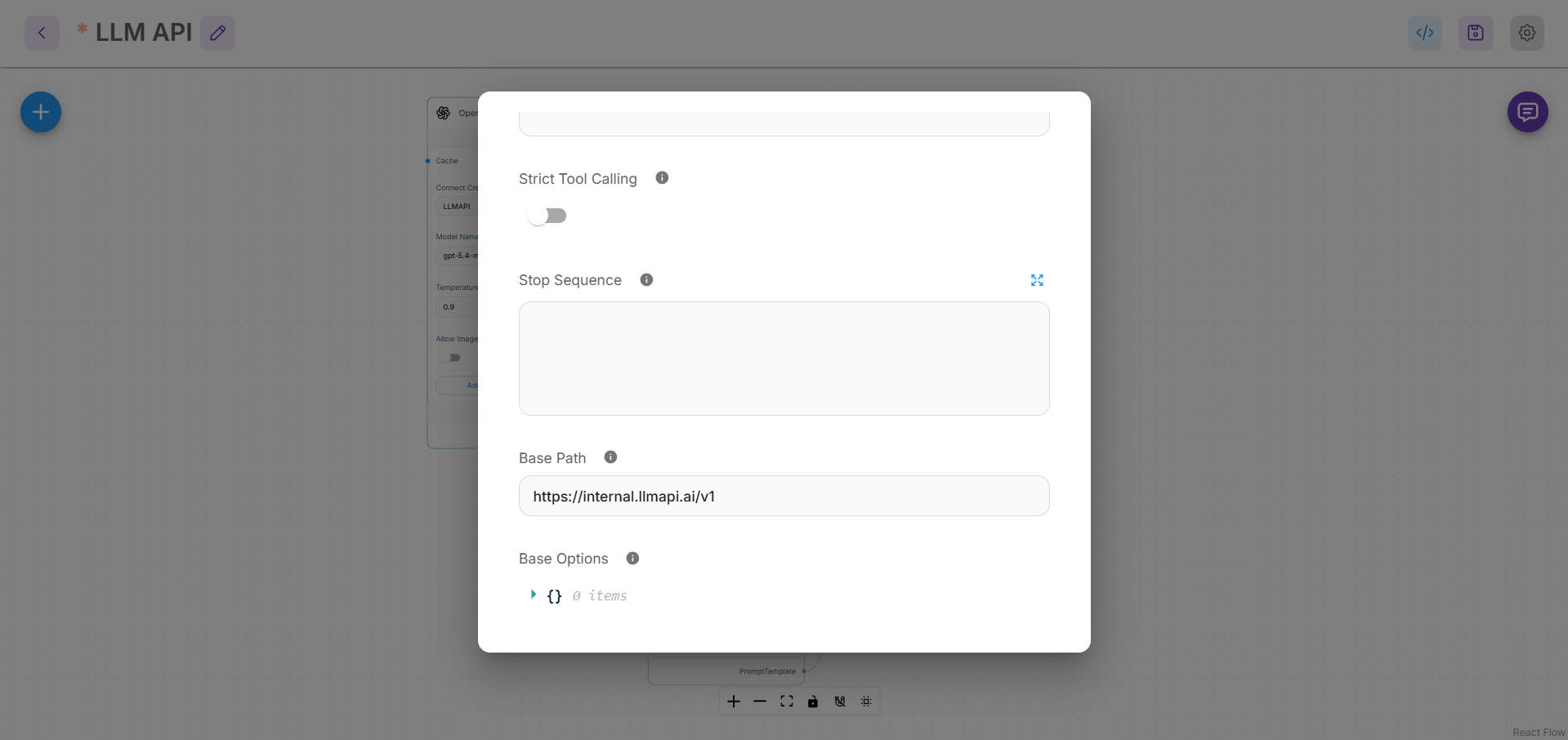
INFO
The screenshot shows where to find the field. Use the public https://api.llmapi.ai/v1 endpoint
shown above for your configuration.
Leave Base Options empty unless you specifically need extra HTTP headers.
INFO
Copy exact model IDs from the models page. If the regular OpenAI
node does not let you enter the ID, replace it with OpenAI Custom Model and type the ID into
its Model Name field.
Build a Minimal Test Chatflow
A chat-model node cannot run by itself. Add these two nodes:
- Prompt Template
- LLM Chain
Set the Prompt Template's Template field to:
{input}
Then connect the nodes:
- Connect the OpenAI node's ChatOpenAI output to LLM Chain → Language Model.
- Connect Prompt Template → PromptTemplate to LLM Chain → Prompt.
- Give the chain a recognizable name, such as
LLM API.
- Click the save icon and name the chatflow
LLM API Provider Test.
Test the Connection
- Click the purple chat button in the upper-right corner.
- Send a short message, such as
Reply with only: LLM API connected.
- Confirm that the assistant returns a response.
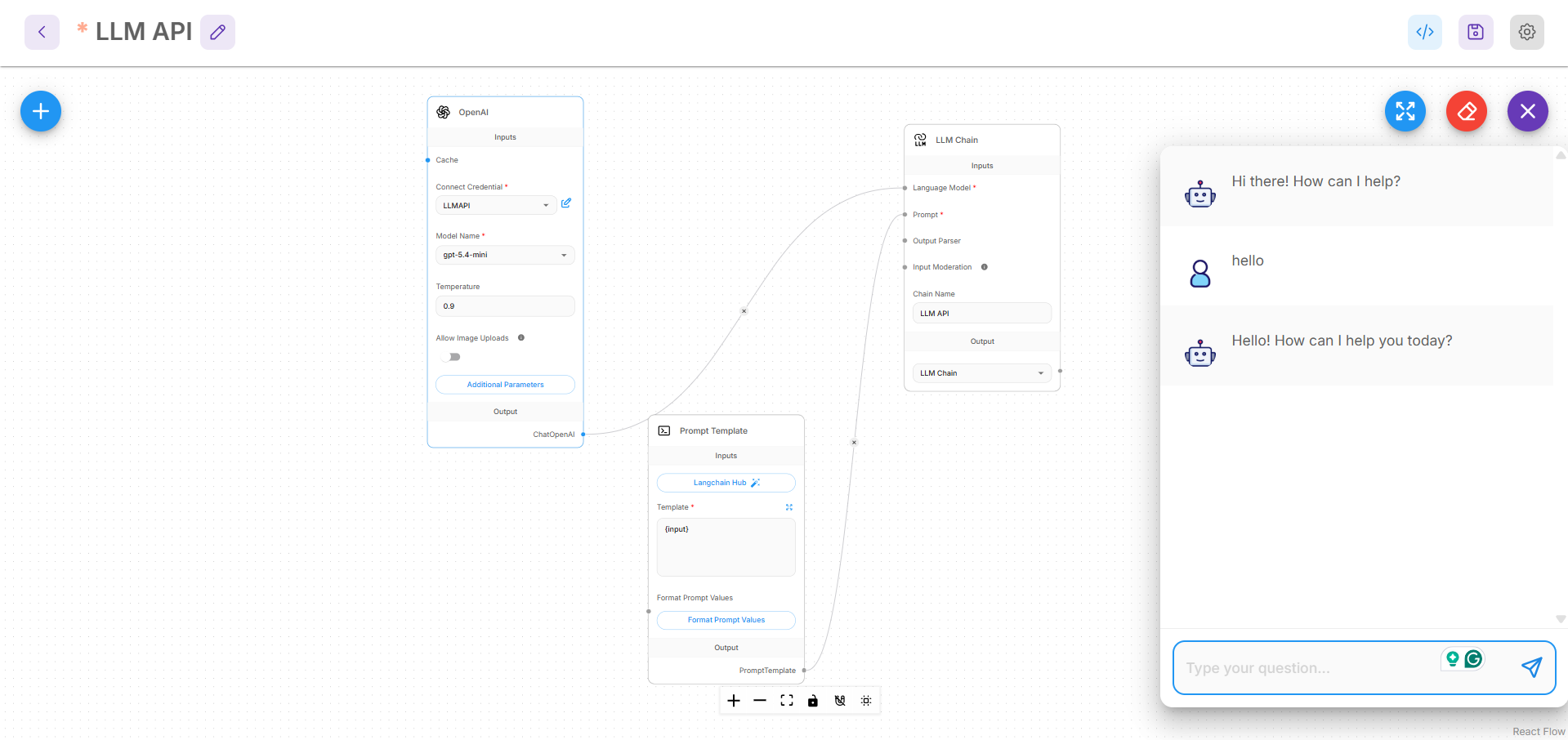
The request is now routed through LLM API. You can also confirm it in your LLM API usage analytics.
Using Native Flowise Providers
For a provider that Flowise supports directly, such as Anthropic or Groq, you can instead create that provider's native credential and use its dedicated chat-model node. This is useful when you want provider-specific node features.
Use the OpenAI-compatible setup above when you want one LLM API credential and endpoint for models across multiple providers.
Troubleshooting
Authentication or 401 Error
- Edit the
LLM API credential and paste the key again without spaces or quotation marks.
- Confirm that the key is active in the LLM API dashboard.
- Make sure the OpenAI node is connected to the correct saved credential.
404 or Connection Error
- Confirm that Base Path is exactly
https://api.llmapi.ai/v1.
- Enter the base path, not the full
/chat/completions URL.
- If Flowise is behind a firewall or proxy, confirm that it can make outbound HTTPS requests to
api.llmapi.ai.
Model Not Found
- Copy the exact model ID from the models page.
- Do not add
/v1 or a provider URL to the model name.
- If the regular OpenAI node only offers a fixed list, use OpenAI Custom Model so you can type the model ID.
Chat Button Does Not Run the Model
Confirm that the chatflow is saved and both required connections reach the LLM Chain:
OpenAI chat model ──> LLM Chain: Language Model
Prompt Template   ──> LLM Chain: Prompt
Credential Cannot Be Decrypted
Flowise encrypts saved provider credentials with an encryption key. If a self-hosted instance loses or changes that key, existing credentials can no longer be decrypted. Recreate the credential and configure persistent credential-key storage before restarting or moving the instance.
Next Steps