Dify Integration
Dify is a platform for building AI applications, workflows, RAG pipelines, and agents. Connect Dify to LLM API through the OpenAI-compatible provider to use models from multiple AI providers with one API key and endpoint.
This guide installs the provider plugin, adds an LLM API model, and verifies the connection in Dify.
Prerequisites
- An LLM API account
- A Dify Cloud workspace or self-hosted Dify instance
- Permission to install plugins and manage model providers in Dify
Setup
Get Your LLM API Key
- Open the LLM API dashboard.
- Click Create Key to Start.
- Copy the new API key. It is shown only once.
- Store the key securely, such as in a password manager.
WARNING
Treat your API key like a password. Do not share it or include it in screenshots.
Open Model Providers
- Sign in to your Dify workspace.
- Select Integrations in the left sidebar.
- Select Model Provider.
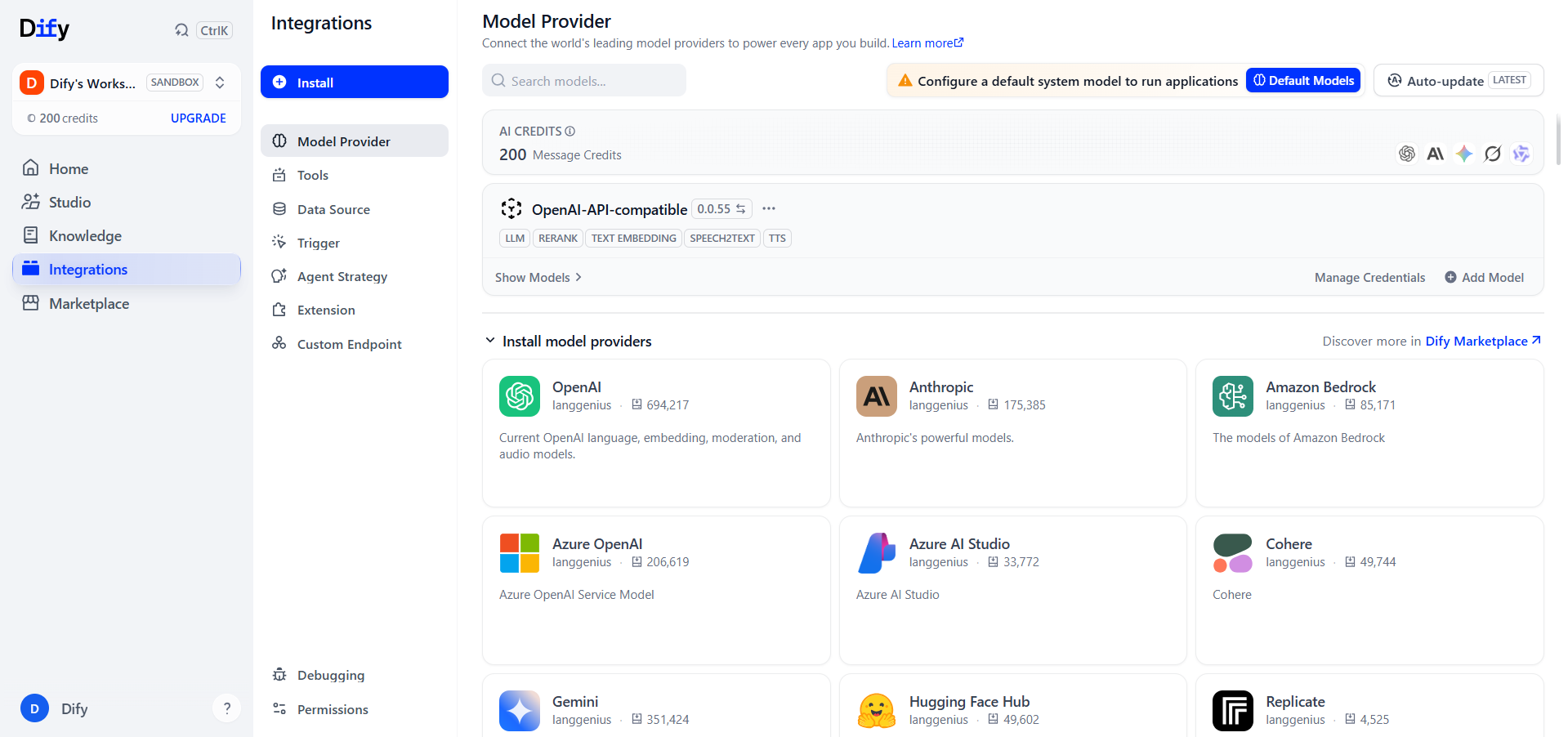
If your Dify version uses the previous navigation, open your profile menu, select Settings, and then select Model Provider.
Install the OpenAI-Compatible Provider
If OpenAI-API-compatible already appears under Model Provider, continue to the next step.
Otherwise:
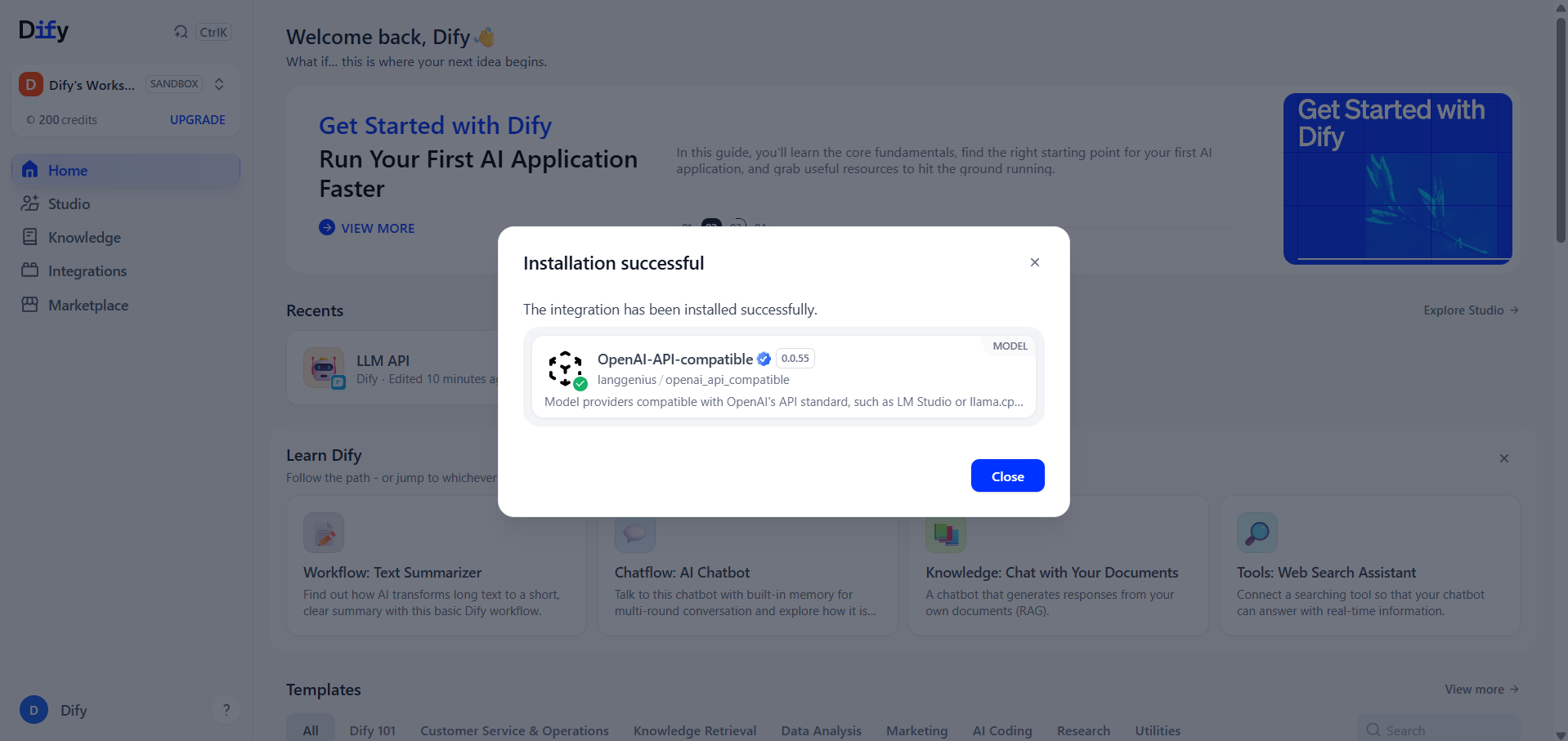
- Click Install.
- Search for
OpenAI-API-compatible.
- Select the plugin published by
langgenius.
- Review the requested permissions and install the plugin.
- Close the confirmation dialog after the installation succeeds.
Add an LLM API Model
- Return to Integrations → Model Provider.
- Find OpenAI-API-compatible under the installed providers.
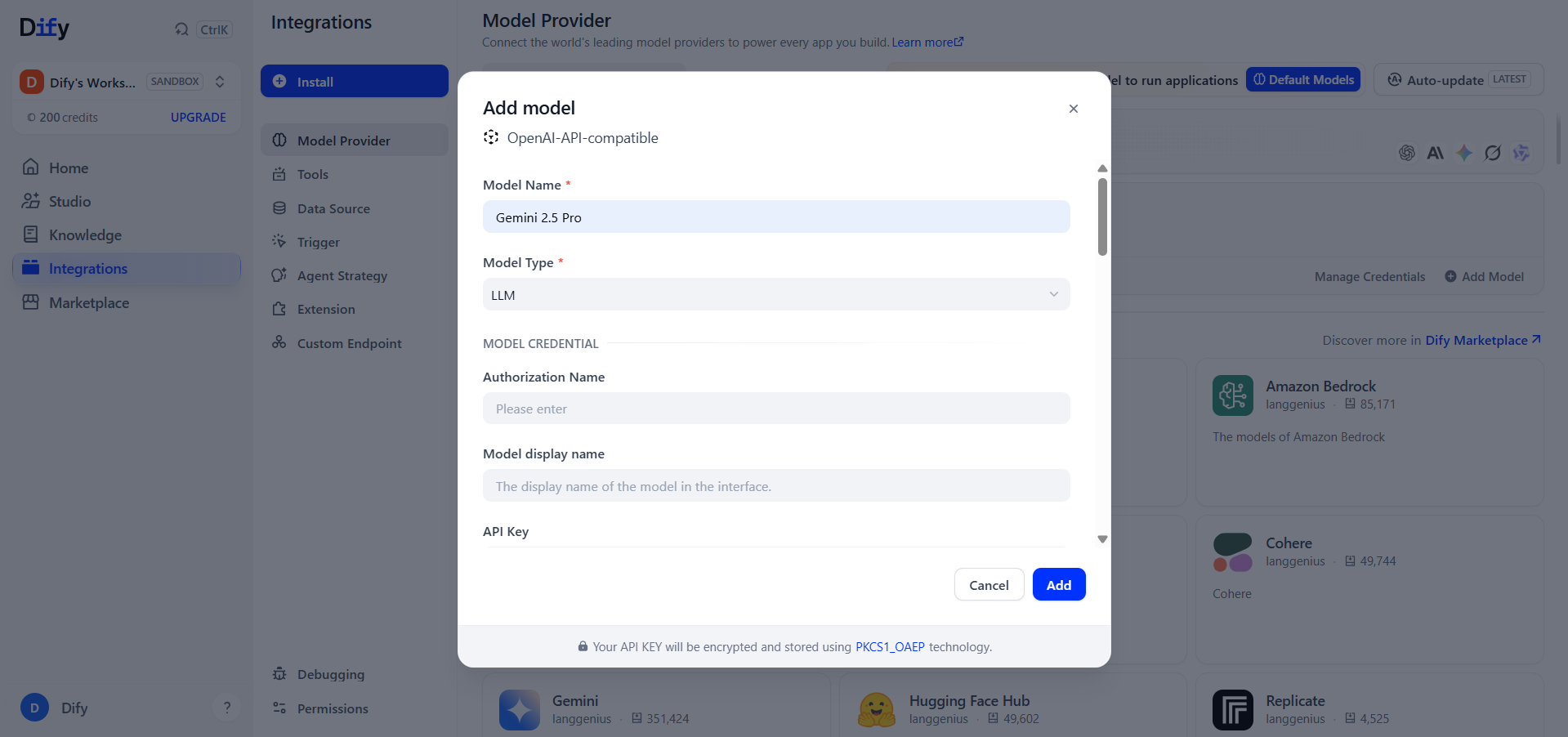
- Click Add Model.
Complete the model settings:
- Model Name: a name for the model in Dify, such as
Gemini 2.5 Pro
- Model Type:
LLM
- Authorization Name: optional; for example,
LLM API
- Model display name: optional; the name shown to Dify users
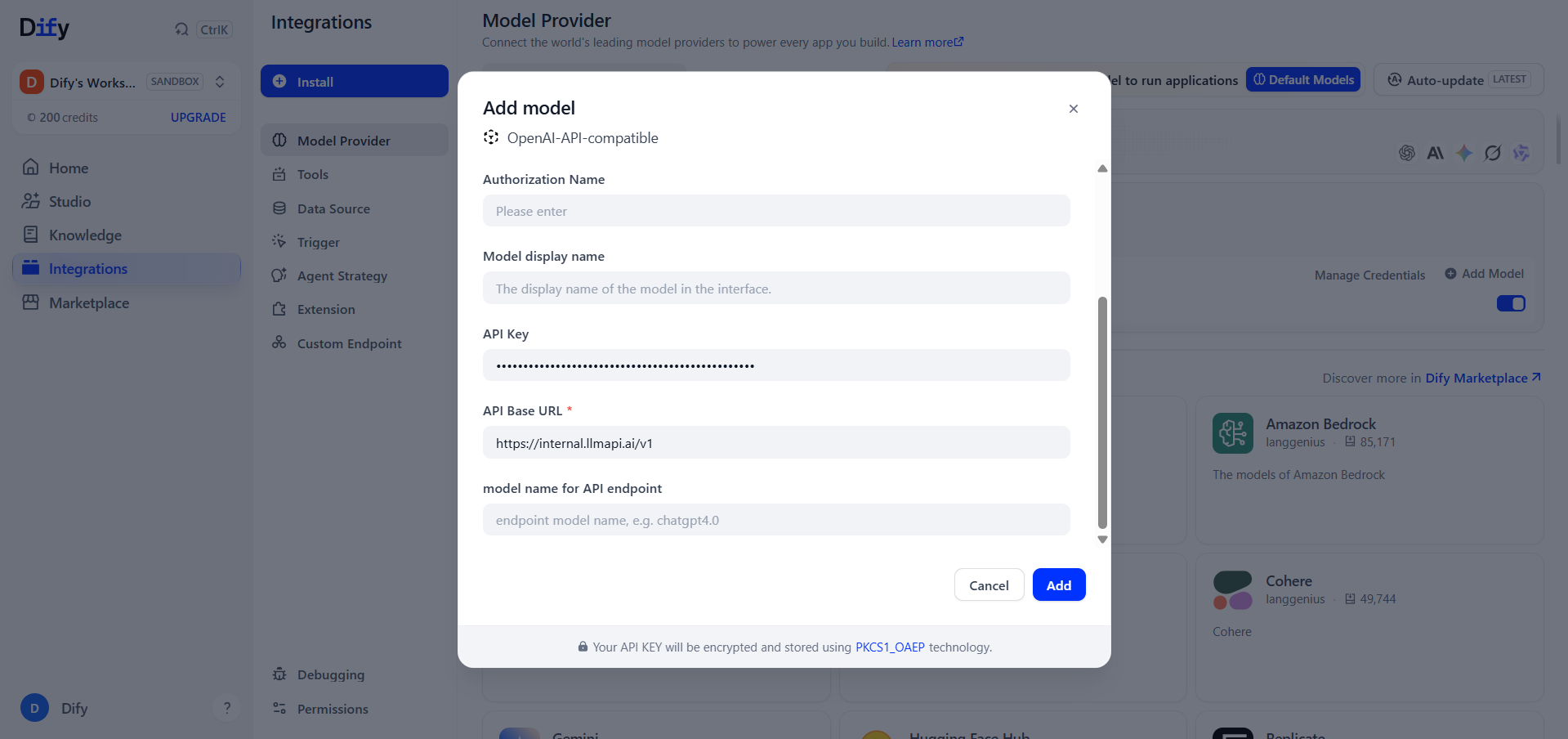
Then enter the LLM API connection details:
- API Key: your LLM API key
- API Base URL:
https://api.llmapi.ai/v1
- model name for API endpoint: the exact LLM API model ID, such as
gemini-2.5-pro
INFO
Use the base URL only. Do not append /chat/completions; the Dify plugin adds the request path.
You can find model IDs on the LLM API models page. Complete any remaining model options required by your Dify version, then click Add. Dify validates the credentials before saving the model.
Test the Model
- Open an existing Dify application or create a new Chatflow or Workflow.
- Add or select an LLM node.
- Choose OpenAI-API-compatible as the provider.
- Select the model you added.
- Run the application with a test prompt.
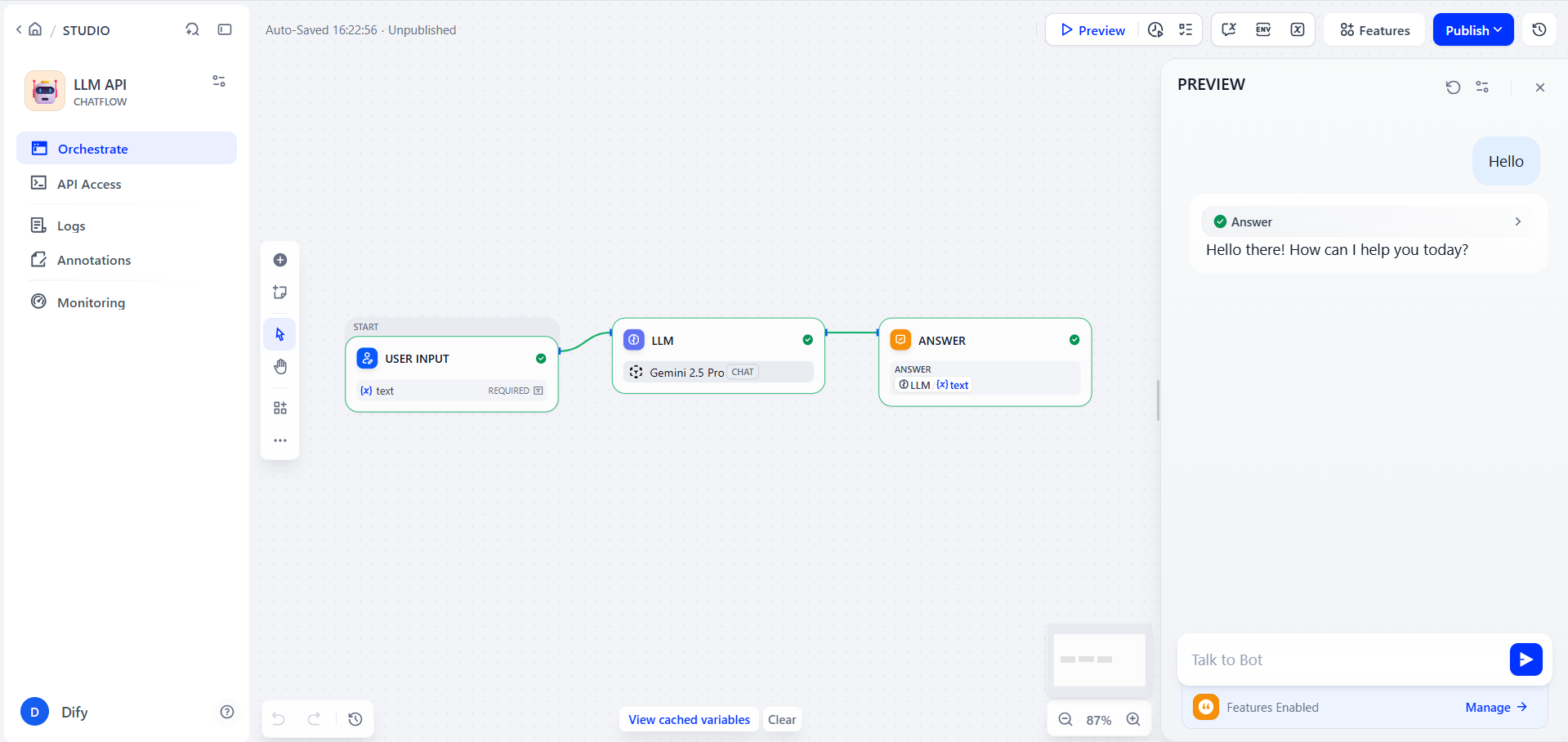
A successful response confirms that Dify can reach LLM API. The request also appears in your LLM API usage analytics.
Add More Models
Click Add Model again for each additional model you want to expose in Dify. The models can share the same LLM API key and base URL, but each configuration must use the correct model ID for the API endpoint.
Troubleshooting
OpenAI-API-compatible Does Not Appear
- Confirm that the plugin installation completed successfully.
- Refresh the Integrations page.
- Verify that your Dify role can install and manage plugins.
Credential Validation Fails
- Re-enter the API key and check for extra spaces.
- Confirm that the base URL is exactly
https://api.llmapi.ai/v1.
- Verify that the API key is active and has sufficient credits.
- Check whether IAM rules or usage limits on the key block the selected model.
Dify Returns Model Not Found
The value in model name for API endpoint must match the model ID from the models page. Use the ID, such as gemini-2.5-pro, rather than only a friendly display name.
The Model Is Not Available in an Application
- Confirm that the model was added successfully under OpenAI-API-compatible.
- Refresh the application editor and reopen the model selector.
- If your workspace requires default models, configure the new model under Default Models.
Next Steps
- Add more LLM API models for different Dify workflows.
- Configure a default model for the workspace.
- Review requests and costs in the LLM API usage analytics.