Activepieces Integration
Activepieces is an open-source workflow automation platform for building flows from triggers and actions. You can call any LLM API model from a flow with the built-in HTTP piece.
This guide sends a POST request to LLM API's OpenAI-compatible Chat Completions endpoint, inserts data from an earlier flow step into the prompt, and exposes the generated text to later actions.
Prerequisites
- An LLM API account with an API key
- An Activepieces workspace or self-hosted instance where you can edit flows
- A flow with a tested trigger whose output you can use in the prompt
Call LLM API from a Flow
Get Your LLM API Key
- Open the LLM API dashboard.
- Click Create Key to Start.
- Copy the new API key. It is shown only once.
- Store the key securely, such as in a password manager.
WARNING
Treat your API key like a password. Do not include it in screenshots, flow names, or fields that
are passed to later actions.
Add the HTTP Action
- Open an existing flow or create a new one.
- Configure and test the trigger so its sample data is available.
- Click + below the trigger to add an action.
- Search for and select the HTTP piece.
- Select Send HTTP request.
The HTTP action gives you direct control over the endpoint, authentication, and nested JSON request body required by LLM API.
Configure the Request
Enter these values in Send HTTP request:
- Method:
POST
- URL:
https://api.llmapi.ai/v1/chat/completions
- Headers:
- Key:
Content-Type
- Value:
application/json
- Query params: leave empty
- Authentication:
Bearer Token
- Token: your LLM API key
Enter only the API key in Token. Activepieces adds the Bearer prefix to the Authorization header automatically.
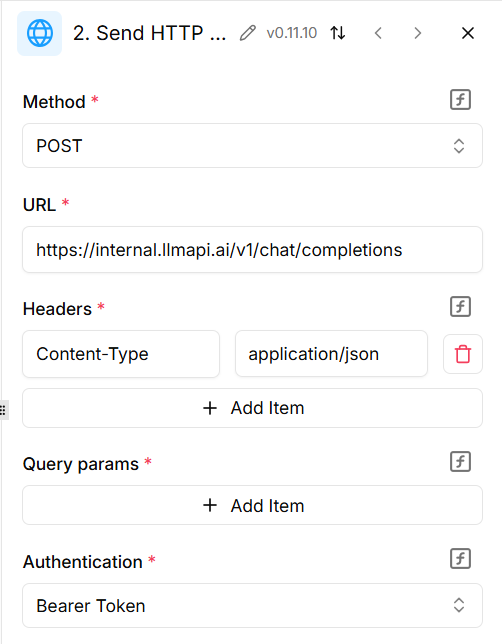
WARNING
The screenshot shows the location of each field but was captured in a development environment. Use
the public https://api.llmapi.ai/v1/chat/completions URL above, not the internal hostname shown
in the image.
Add the JSON Body
Set Body Type to JSON, then paste this into JSON Body:
{
  "model": "gpt-5.4-mini",
  "messages": [
    {
      "role": "user",
      "content": "Summarize this text: Replace this text with data from the trigger"
    }
  ]
}
Replace the example text in content with data from the trigger or another earlier step:
- Place the cursor after your prompt instructions in the
content value.
- Open Activepieces' Data to Insert panel.
- Expand the earlier step and select the field you want to insert.
- Keep the inserted text inside the JSON string's quotation marks.
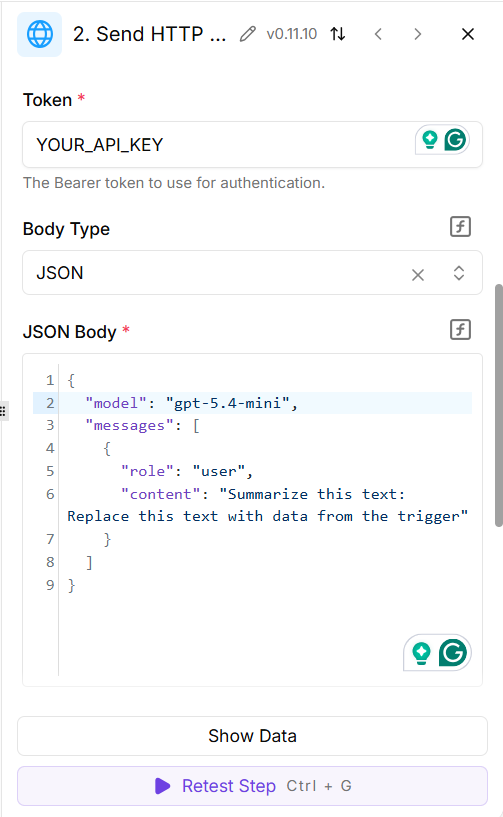
Use any model available to your API key. Copy its exact ID from the models page and replace gpt-5.4-mini if needed.
INFO
Activepieces requires a step to be tested before its output becomes available in the Data to
Insert panel. Return to the earlier step and test it if you cannot select its data.
Review Optional Settings
For a standard text response, use these settings:
- Response is Binary: off
- Use Proxy: off, unless your network requires one
- Timeout (in seconds): leave blank for the default, or set a longer timeout for slower models
- Follow redirects: off
- On Failure:
Do not continue (stop the flow) while testing
Stopping on failure prevents later actions from running with an empty or invalid AI response. You can change the failure behavior after the flow works correctly.
Test the Request
- Click Test Step.
- Confirm that Activepieces displays Tested Successfully.
- Expand choices, then Item 1, then message.
- Confirm that role is
assistant and content contains the generated text.
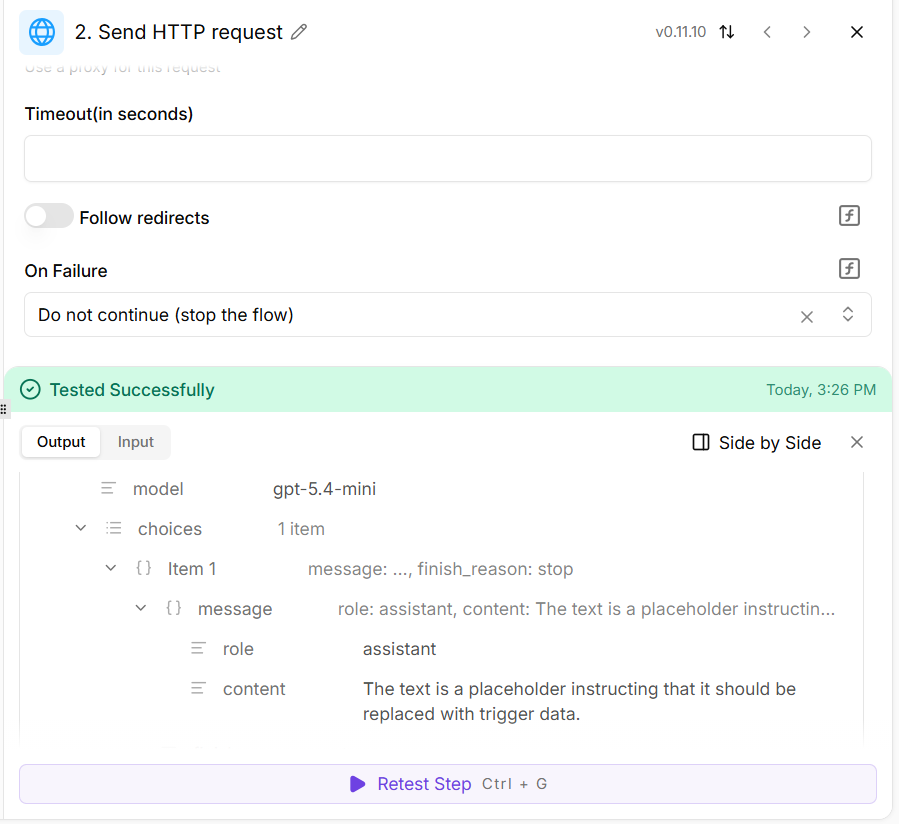
The generated text is available at the first choice's message.content field. The request also appears in your LLM API usage analytics.
Use the Response in Another Action
- Add the next action, such as Gmail, Slack, Google Sheets, or a database piece.
- Click the field that should receive the generated text.
- In Data to Insert, expand Send HTTP request.
- Select the content under the first item in
choices, then message.
- Test the next action and publish the flow.
Each flow run now sends its mapped input to LLM API and passes the assistant response to the remaining actions.
Troubleshooting
401 Unauthorized
- Select Bearer Token authentication.
- Enter only the LLM API key in Token; do not add
Bearer yourself.
- Paste the key again without quotation marks or leading or trailing spaces.
- Confirm that the key is active in the LLM API dashboard.
404 or Endpoint Error
- Confirm the URL is exactly
https://api.llmapi.ai/v1/chat/completions.
- Make sure the URL includes the full
/v1/chat/completions path.
- For a self-hosted Activepieces instance, confirm that its worker can make outbound HTTPS requests to
api.llmapi.ai.
400 Bad Request or Invalid JSON
- Set Body Type to JSON.
- Check that all JSON keys and strings use double quotes.
- Remove trailing commas after the last object or array item.
- Confirm that the
messages value is an array and contains a role and content.
Model Not Found
- Copy the exact model ID from the models page.
- Confirm that the API key's IAM rules allow the selected model and provider.
Earlier Step Data Is Missing
- Test the trigger and every action whose data you want to use.
- Reopen Data to Insert after the earlier step has sample output.
- Expand nested output fields before selecting a value.
The Request Times Out
- Enter a larger value in Timeout (in seconds).
- Test with a faster model or a smaller prompt.
- Check the LLM API dashboard to determine whether the request reached the service.
Next Steps
- Add a system message to the
messages array to control the model's behavior.
- Map fields from multiple earlier steps into the prompt.
- Use the parsed
choices[0].message.content output in branches or later actions.
- Review cost, latency, and provider routing in the LLM API dashboard.